failed to load jvm dll android studio,Android Studio Failed to Load JVM DLL
I have installed JDK 1.0.7_25 and Android Studio bundle as instructed. After completing the installation when I tried to launch, I got the following error message:Failed to load JVM DLL C:\Program Fil
I have installed JDK 1.0.7_25 and Android Studio bundle as instructed. After completing the installation when I tried to launch, I got the following error message:
Failed to load JVM DLL C:\Program Files\Java\jdk1.7.0_25\jre
If you already have a 32-bit JDK installed, define a JAVA_HOME variable in Computer > System Properties > System Settings > Environment Variables.
I have created a JAVA_HOME variable as prescribed, but still getting the same error message. Now I'm a little frustrated about this. Please help me out. It will be very helpful if you can give me a step-by-step solution as I am new in this area.
# Answer 1

As well as JAVA_HOME which should be set to the jdk directory e.g. C:\Program Files\Java\jdk1.7.0_21 you also have to add a path to the jdk bin directory e.g. C:\Program Files\Java\jdk1.7.0_21\bin.
As you already know how to set the JAVA_HOME variable adding the extra directory to the path variable is just the same but you have to edit an existing variable and add the path separated by a semicolon e.g. add ;C:\Program Files\Java\jdk1.7.0_21\bin to the end of the path. And then restart your PC, to start the Android Studio.
More details at: Getting Started With Android Studio
# Answer 2
It works like this:
JAVA_HOME: C:\Program Files\Java\jdk1.7.0_21
and
PATH: C:\Program Files\Java\jdk1.7.0_21\bin
# Answer 3
It is very late for my answer but still to the people who reference this in the future, I had the same issue. Mine was x64 bit OS and I was trying to open studio.exe which is x32 bit. I opened studio64.exe and it worked.
# Answer 4
I hit this with a fresh install of Android Studio on Windows 10. It ran fine after installing, but gave this error after I rebooted the computer. Turns out I need to run Android Studio with Administrator privileges, which doesn't happen by default.
Right-click --> Run as Administrator
If this is not viable, there is probably a different approach which would involve installing the JDK in a location that runable without elevated permissions (see other answers for ideas).
# Answer 5
I added JAVA_HOME = C:\Program Files\Java\jdk-10.0.1.
And Open Android Studio as run as administrator.
Worked for me.
# Answer 6
If you are running a 64-bit version of Windows, you should run the 64-bit executable, studio64.exe.
Try to run studio64.exe with Administrator privileges.
(C:\Program Files\Android\Android Studio\bin)
# Answer 7
For me it helped to make sure that I ended my environment variables with a backslash
JAVA_HOME = C:\path to jdk\
PATH = C:\other existing paths\;C:\path to jdk\bin\
# Answer 8
It is very simple![step-1][1]..Just go to Advanced settings>environment variables.In System variables,add new variable(JAVA_HOME) by clicking new.Fill the variable value by the location of the jdk-"C:\Program Files\Java\jdk1.7.0_75" in program variable .
In next step you have to edit the existing System Variables by scrolling down to find "path: There are already so many path values defined in variable values.So by using ";" you can add another value as ";C:\Program Files\Java\jdk1.7.0_75\bin".
Check it out.it is ready.All the best.
# Answer 9
Just to be sure,ensure that your java version is enabled in the Java controll Panel,sometimes it does conflict and the android studio fails to pick since the one Enabled is not on the Classpath.Make sure that the one Enabled is the one that is set in the Class Path/Environmenal Variables.
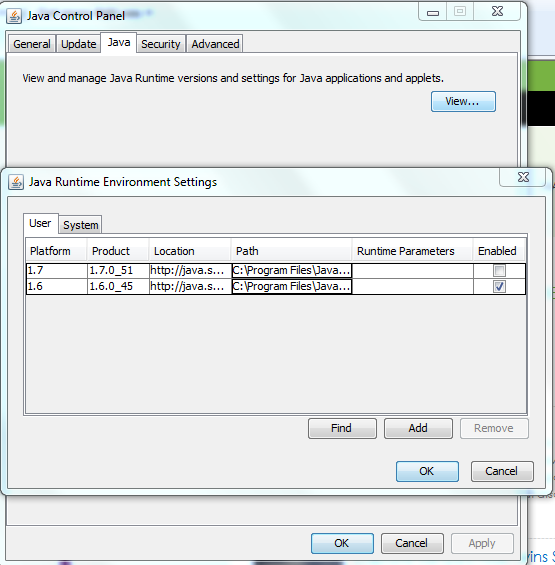
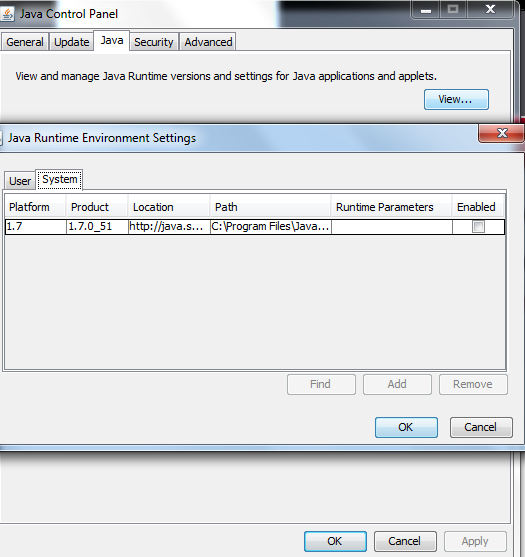
Happy Coding!
# Answer 10
Restart was not necessary. It worked.
JAVA_HOME: C:\Program Files\Java\jdk1.8.0_201\jre\bin\server\jvm.dll
and
PATH: C:\Program Files\Java\jdk1.8.0_201\bin
# Answer 11
I had to do nothing except rebooting my pc. After reboot it worked.

魔乐社区(Modelers.cn) 是一个中立、公益的人工智能社区,提供人工智能工具、模型、数据的托管、展示与应用协同服务,为人工智能开发及爱好者搭建开放的学习交流平台。社区通过理事会方式运作,由全产业链共同建设、共同运营、共同享有,推动国产AI生态繁荣发展。
更多推荐


 0
0 0
0- 0


 已为社区贡献12条内容

所有评论(0)