【开源工具】基于Python的现代化屏幕取色器开发全攻略:从原理到实现
·
🎨 【开源工具】基于PyQt5的现代化屏幕取色器开发全攻略:从原理到实现


🌈 个人主页:创客白泽 - CSDN博客
🔥 系列专栏:🐍《Python开源项目实战》
💡 热爱不止于代码,热情源自每一个灵感闪现的夜晚。愿以开源之火,点亮前行之路。
🐋 希望大家多多支持,我们一起进步!
👍 🎉如果文章对你有帮助的话,欢迎 点赞 👍🏻 评论 💬 收藏 ⭐️ 加关注+💗分享给更多人哦

摘要
本文详细介绍如何使用Python和PyQt5开发一款功能完善、界面美观的现代化屏幕取色工具。通过多线程技术实现实时颜色追踪,结合Win32 API实现剪贴板操作,最终打造出一款兼具实用性和美观性的生产力工具。文章包含完整实现代码、设计思路解析和性能优化技巧。
一、项目概述
在UI设计、网页开发等场景中,颜色拾取是高频需求。本文介绍的Modern Color Picker具有以下特点:
- 现代化UI设计 - 采用Fluent Design风格
- 高性能取色 - 多线程实现毫秒级响应
- 智能反馈 - 可视化颜色预览+复制提示
- 跨平台兼容 - 核心逻辑支持Windows/macOS
二、核心功能解析
2.1 实时颜色追踪
def track_mouse_color(self):
    while not self.stop_thread:
        if self.left_pressed:
            x, y = pyautogui.position()
            rgb = self.get_color_at(x, y)
            self.color_changed.emit(rgb)
        time.sleep(0.03)
- 独立线程处理鼠标坐标获取
- 通过信号槽机制更新UI
- 33fps的采样频率平衡性能与流畅度
2.2 智能颜色显示
# 根据亮度自动调整文本颜色
brightness = sqrt(0.299*color.red()**2 + 0.587*color.green()**2 + 0.114*color.blue()**2)
text_color = QColor("#ffffff" if brightness < 128 else "#333333")
使用光度公式实现智能反色,确保文字始终可见
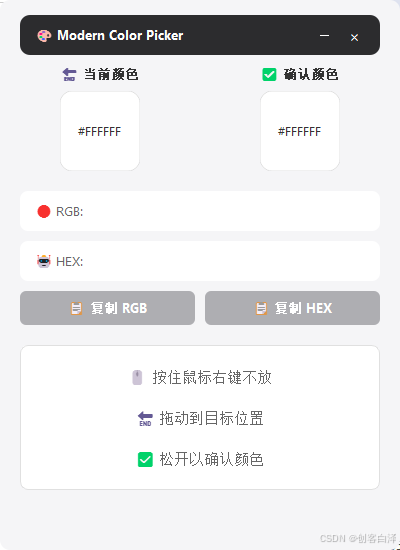
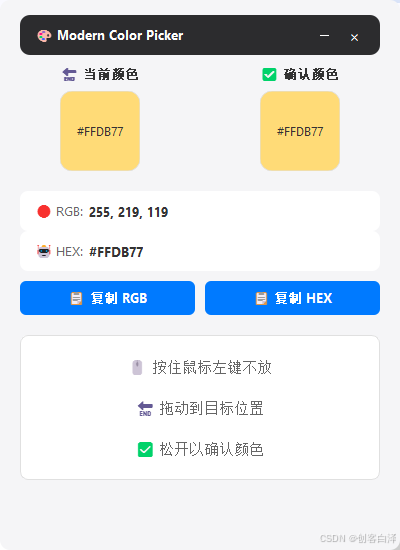
三、效果展示
四、实现步骤详解
4.1 环境配置
pip install pyqt5 pyautogui pillow pywin32
4.2 关键实现步骤
- 创建无边框窗口
   self.setWindowFlags(Qt.FramelessWindowHint | Qt.WindowStaysOnTopHint)
   self.setAttribute(Qt.WA_TranslucentBackground)
- 设计颜色预览组件
   path.addRoundedRect(0, 0, self.width(), self.height(), 12, 12)
   painter.fillPath(path, QColor(self.color))
- 实现拖拽取色逻辑
   def on_mouse_down(self, event):
       self.left_pressed = True

   def on_mouse_up(self, event):
       if self.left_pressed:
           x, y = pyautogui.position()
           rgb = self.get_color_at(x, y)
五、代码深度解析
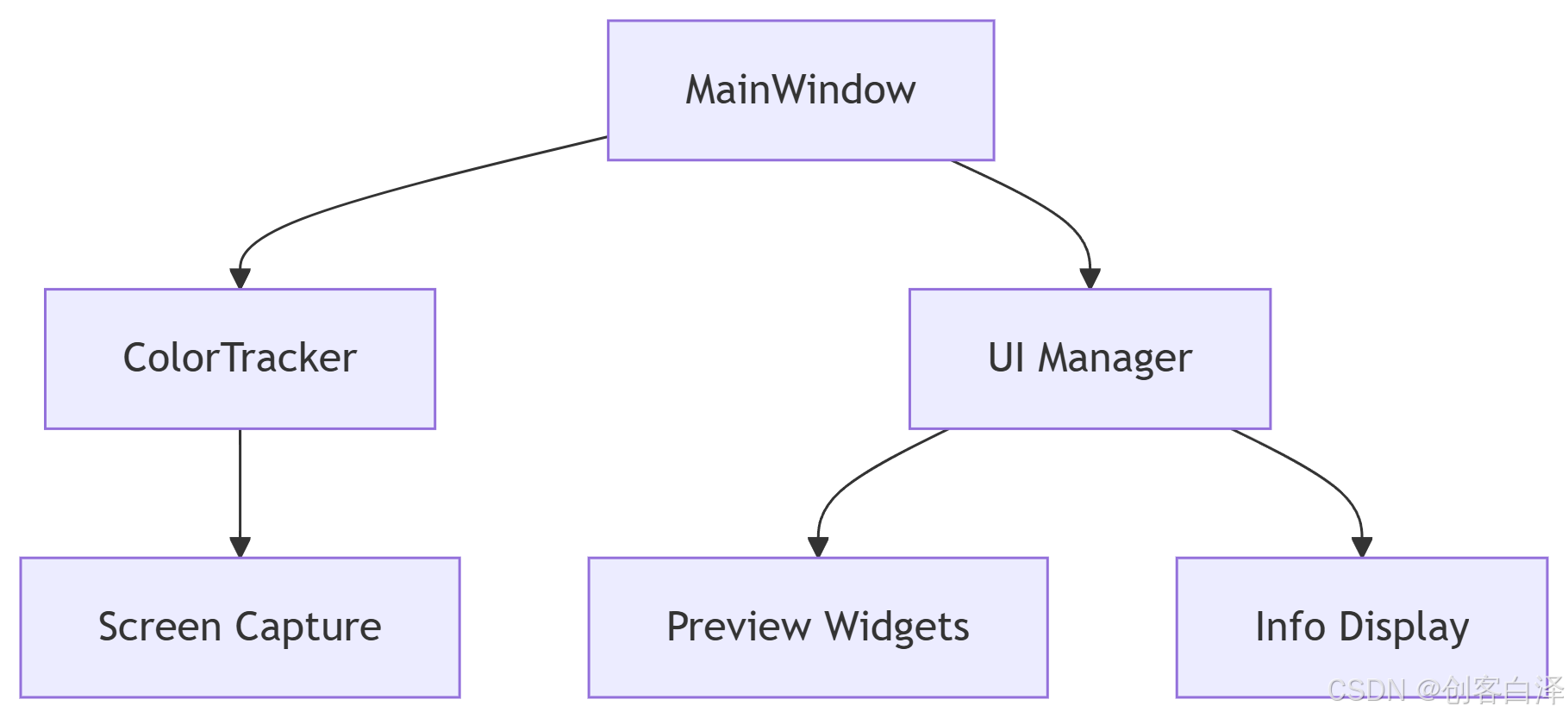
5.1 架构设计
5.2 性能优化点
- 双缓冲绘图:
QPainter.setRenderHint(QPainter.Antialiasing) - 资源复用:重复使用QPixmap缓存
- 线程安全:通过信号槽跨线程通信
六、完整源码
import sys
import pyautogui
from PIL import ImageGrab
import win32clipboard
import threading
import time
from math import sqrt
from PyQt5.QtWidgets import (QApplication, QMainWindow, QWidget, QVBoxLayout, QHBoxLayout,
                            QLabel, QPushButton, QFrame, QSizePolicy)
from PyQt5.QtCore import Qt, QSize, QPoint, QTimer, pyqtSignal
from PyQt5.QtGui import QColor, QPainter, QPainterPath, QFont, QFontDatabase, QPixmap, QIcon

class ModernColorPicker(QMainWindow):
    color_changed = pyqtSignal(tuple)  # 颜色变化信号

    def __init__(self):
        super().__init__()
        self.setup_ui()
        self.setup_window()

        # 初始化变量
        self.left_pressed = False
        self.stop_thread = False
        self.drag_start_pos = QPoint()
        self.current_rgb = None
        self.current_hex = None

        # 启动颜色跟踪线程
        self.track_thread = threading.Thread(target=self.track_mouse_color)
        self.track_thread.daemon = True
        self.track_thread.start()

        # 连接信号
        self.color_changed.connect(self.update_current_color)

    def setup_window(self):
        """设置窗口属性"""
        self.setWindowTitle("🎨 Modern Color Picker")
        self.setWindowFlags(Qt.FramelessWindowHint | Qt.WindowStaysOnTopHint)
        self.setAttribute(Qt.WA_TranslucentBackground)

        # 设置窗口大小和位置
        screen = QApplication.primaryScreen().geometry()
        self.setFixedSize(400, 550)
        self.move(screen.width() - self.width() - 20,
                 (screen.height() - self.height()) // 2)

        # 窗口阴影效果
        self.shadow = QWidget(self)
        self.shadow.setGeometry(3, 3, self.width(), self.height())
        self.shadow.setStyleSheet("background-color: rgba(0, 0, 0, 50); border-radius: 12px;")
        self.shadow.lower()

    def setup_ui(self):
        """设置用户界面"""
        # 主窗口
        main_widget = QWidget()
        main_widget.setObjectName("mainWidget")
        main_widget.setStyleSheet("""
            #mainWidget {
                background-color: #f5f5f7;
                border-radius: 10px;
            }
            QLabel {
                color: #333333;
            }
        """)
        self.setCentralWidget(main_widget)

        # 主布局
        main_layout = QVBoxLayout(main_widget)
        main_layout.setContentsMargins(20, 15, 20, 15)
        main_layout.setSpacing(0)

        # 标题栏
        self.setup_title_bar(main_layout)

        # 颜色预览区域
        self.setup_color_previews(main_layout)

        # 颜色信息显示
        self.setup_color_info(main_layout)

        # 操作按钮
        self.setup_action_buttons(main_layout)

        # 取色区域
        self.setup_pick_area(main_layout)

        # 状态栏
        self.status_label = QLabel("")
        self.status_label.setAlignment(Qt.AlignCenter)
        self.status_label.setStyleSheet("""
            QLabel {
                color: #007AFF;
                font: 9pt "Segoe UI";
                padding: 5px 0;
            }
        """)
        main_layout.addWidget(self.status_label)

    def setup_title_bar(self, parent_layout):
        """设置自定义标题栏"""
        title_bar = QWidget()
        title_bar.setFixedHeight(40)
        title_bar.setStyleSheet("background-color: #2c2c2e; border-radius: 10px 10px 0 0;")

        # 标题栏布局
        title_layout = QHBoxLayout(title_bar)
        title_layout.setContentsMargins(15, 0, 15, 0)
        title_layout.setSpacing(0)

        # 标题
        title_label = QLabel("🎨 Modern Color Picker")
        title_label.setStyleSheet("""
            QLabel {
                color: white;
                font: bold 10pt "Segoe UI";
            }
        """)

        # 按钮区域
        btn_widget = QWidget()
        btn_layout = QHBoxLayout(btn_widget)
        btn_layout.setContentsMargins(0, 0, 0, 0)
        btn_layout.setSpacing(10)

        # 最小化按钮
        minimize_btn = QPushButton("-")
        minimize_btn.setFixedSize(20, 20)
        minimize_btn.setStyleSheet("""
            QPushButton {
                background-color: transparent;
                color: white;
                font: 12pt "Segoe UI";
                border: none;
            }
            QPushButton:hover {
                background-color: #3a3a3c;
                border-radius: 10px;
            }
        """)
        minimize_btn.clicked.connect(self.showMinimized)

        # 关闭按钮
        close_btn = QPushButton("×")
        close_btn.setFixedSize(20, 20)
        close_btn.setStyleSheet("""
            QPushButton {
                background-color: transparent;
                color: white;
                font: 12pt "Segoe UI";
                border: none;
            }
            QPushButton:hover {
                background-color: #ff5f56;
                border-radius: 10px;
            }
        """)
        close_btn.clicked.connect(self.exit_app)

        # 添加到布局
        btn_layout.addWidget(minimize_btn)
        btn_layout.addWidget(close_btn)

        title_layout.addWidget(title_label, 0, Qt.AlignLeft)
        title_layout.addStretch()
        title_layout.addWidget(btn_widget, 0, Qt.AlignRight)

        parent_layout.addWidget(title_bar)

    def setup_color_previews(self, parent_layout):
        """设置颜色预览区域"""
        preview_widget = QWidget()
        preview_layout = QHBoxLayout(preview_widget)
        preview_layout.setContentsMargins(0, 10, 0, 20)
        preview_layout.setSpacing(40)

        # 当前颜色预览
        current_frame = QVBoxLayout()
        current_frame.setSpacing(8)

        current_label = QLabel("🔄 当前颜色")
        current_label.setStyleSheet("""
            QLabel {
                font: bold 10pt "Segoe UI";
                color: #333333;
            }
        """)
        current_label.setAlignment(Qt.AlignCenter)

        self.current_color_preview = ColorPreviewWidget()
        self.current_color_preview.setFixedSize(80, 80)

        current_frame.addWidget(current_label)
        current_frame.addWidget(self.current_color_preview, 0, Qt.AlignCenter)

        # 确认颜色预览
        confirm_frame = QVBoxLayout()
        confirm_frame.setSpacing(8)

        confirm_label = QLabel("✅ 确认颜色")
        confirm_label.setStyleSheet("""
            QLabel {
                font: bold 10pt "Segoe UI";
                color: #333333;
            }
        """)
        confirm_label.setAlignment(Qt.AlignCenter)

        self.confirm_color_preview = ColorPreviewWidget()
        self.confirm_color_preview.setFixedSize(80, 80)

        confirm_frame.addWidget(confirm_label)
        confirm_frame.addWidget(self.confirm_color_preview, 0, Qt.AlignCenter)

        # 添加到布局
        preview_layout.addLayout(current_frame)
        preview_layout.addLayout(confirm_frame)

        parent_layout.addWidget(preview_widget)

    def setup_color_info(self, parent_layout):
        """设置颜色信息显示区域"""
        # 创建一个垂直布局容器来包裹两个信息框
        color_info_container = QVBoxLayout()
        color_info_container.setContentsMargins(0, 0, 0, 0)
        color_info_container.setSpacing(10)  # 这里设置两个信息框之间的间距

        # RGB值显示
        self.rgb_frame = InfoFrame("🔴 RGB:")
        self.rgb_value = QLabel("")
        self.rgb_value.setStyleSheet("""
            QLabel {
                font: bold 10pt "Segoe UI";
                color: #333333;
            }
        """)
        self.rgb_frame.add_info_widget(self.rgb_value)

        # HEX值显示
        self.hex_frame = InfoFrame("🤖 HEX:")
        self.hex_value = QLabel("")
        self.hex_value.setStyleSheet("""
            QLabel {
                font: bold 10pt "Segoe UI";
                color: #333333;
            }
        """)
        self.hex_frame.add_info_widget(self.hex_value)

        # 添加到容器布局
        color_info_container.addWidget(self.rgb_frame)
        color_info_container.addWidget(self.hex_frame)

        # 将容器布局添加到父布局
        parent_layout.addLayout(color_info_container)

    def setup_action_buttons(self, parent_layout):
        """设置操作按钮"""
        btn_widget = QWidget()
        btn_layout = QHBoxLayout(btn_widget)
        btn_layout.setContentsMargins(0, 10, 0, 20)
        btn_layout.setSpacing(10)

        # 复制RGB按钮
        self.copy_rgb_btn = ModernButton("📋 复制 RGB")
        self.copy_rgb_btn.setEnabled(False)
        self.copy_rgb_btn.clicked.connect(self.copy_rgb)

        # 复制HEX按钮
        self.copy_hex_btn = ModernButton("📋 复制 HEX")
        self.copy_hex_btn.setEnabled(False)
        self.copy_hex_btn.clicked.connect(self.copy_hex)

        # 添加到布局
        btn_layout.addWidget(self.copy_rgb_btn)
        btn_layout.addWidget(self.copy_hex_btn)

        parent_layout.addWidget(btn_widget)

    def setup_pick_area(self, parent_layout):
        """设置取色区域"""
        self.pick_area = QLabel("🖱️ 按住鼠标右键不放\n\n🔄 拖动到目标位置\n\n✅ 松开以确认颜色")
        self.pick_area.setAlignment(Qt.AlignCenter)
        self.pick_area.setStyleSheet("""
            QLabel {
                background-color: #ffffff;
                border: 1px solid #e0e0e0;
                border-radius: 8px;
                font: 11pt "Segoe UI";
                color: #666666;
                padding: 20px;
            }
        """)
        self.pick_area.setCursor(Qt.CrossCursor)

        # 鼠标事件
        self.pick_area.mousePressEvent = self.on_mouse_down
        self.pick_area.mouseReleaseEvent = self.on_mouse_up

        parent_layout.addWidget(self.pick_area)

    # ========== 事件处理 ==========
    def mousePressEvent(self, event):
        """鼠标按下事件(用于窗口拖动)"""
        if event.button() == Qt.LeftButton:
            self.drag_start_pos = event.globalPos() - self.pos()
            event.accept()

    def mouseMoveEvent(self, event):
        """鼠标移动事件(用于窗口拖动)"""
        if event.buttons() == Qt.LeftButton:
            self.move(event.globalPos() - self.drag_start_pos)
            self.shadow.move(self.pos() + QPoint(3, 3))
            event.accept()

    def on_mouse_down(self, event):
        """取色区域鼠标按下事件"""
        self.left_pressed = True
        self.rgb_value.setText("")
        self.hex_value.setText("")
        self.confirm_color_preview.set_color("#ffffff")
        self.copy_rgb_btn.setEnabled(False)
        self.copy_hex_btn.setEnabled(False)
        self.pick_area.setText("🔄 拖动到目标位置\n\n✅ 松开以确认颜色")

    def on_mouse_up(self, event):
        """取色区域鼠标释放事件"""
        if self.left_pressed:
            self.left_pressed = False
            x, y = pyautogui.position()
            rgb = self.get_color_at(x, y)
            hex_color = '#%02x%02x%02x' % rgb

            # 更新UI
            self.rgb_value.setText(f"{rgb[0]}, {rgb[1]}, {rgb[2]}")
            self.hex_value.setText(hex_color.upper())
            self.copy_rgb_btn.setEnabled(True)
            self.copy_hex_btn.setEnabled(True)

            # 保存当前颜色
            self.current_rgb = f"{rgb[0]}, {rgb[1]}, {rgb[2]}"
            self.current_hex = hex_color.upper()

            # 更新确认颜色预览
            self.confirm_color_preview.set_color(hex_color)

            # 自动复制HEX到剪贴板
            self.copy_to_clipboard(hex_color.upper())
            self.show_status(f"🎉 颜色 {hex_color.upper()} 已复制到剪贴板", 3000)

            # 恢复取色区域提示
            self.pick_area.setText("🖱️ 按住鼠标左键不放\n\n🔄 拖动到目标位置\n\n✅ 松开以确认颜色")

    # ========== 功能方法 ==========
    def get_color_at(self, x, y):
        """获取指定位置的颜色"""
        img = ImageGrab.grab(bbox=(x, y, x + 1, y + 1))
        return img.getpixel((0, 0))

    def copy_to_clipboard(self, text):
        """复制文本到剪贴板"""
        win32clipboard.OpenClipboard()
        win32clipboard.EmptyClipboard()
        win32clipboard.SetClipboardText(text)
        win32clipboard.CloseClipboard()

    def update_current_color(self, rgb):
        """更新当前颜色预览"""
        hex_color = '#%02x%02x%02x' % rgb
        self.current_color_preview.set_color(hex_color)

    def track_mouse_color(self):
        """跟踪鼠标位置的颜色"""
        while not self.stop_thread:
            if self.left_pressed:
                x, y = pyautogui.position()
                rgb = self.get_color_at(x, y)
                self.color_changed.emit(rgb)
            time.sleep(0.03)

    def copy_rgb(self):
        """复制RGB值"""
        if self.current_rgb:
            self.copy_to_clipboard(self.current_rgb)
            self.flash_button(self.copy_rgb_btn, "✓ 已复制")

    def copy_hex(self):
        """复制HEX值"""
        if self.current_hex:
            self.copy_to_clipboard(self.current_hex)
            self.flash_button(self.copy_hex_btn, "✓ 已复制")

    def flash_button(self, button, temp_text):
        """按钮点击反馈效果"""
        original_text = button.text()
        button.setText(temp_text)
        button.setStyleSheet("""
            QPushButton {
                background-color: #34C759;
                color: white;
                font: bold 10pt "Segoe UI";
                border-radius: 6px;
                padding: 8px 20px;
            }
        """)

        QTimer.singleShot(1500, lambda: (
            button.setText(original_text),
            button.setStyleSheet("""
                QPushButton {
                    background-color: #007AFF;
                    color: white;
                    font: bold 10pt "Segoe UI";
                    border-radius: 6px;
                    padding: 8px 20px;
                }
                QPushButton:hover {
                    background-color: #0062CC;
                }
                QPushButton:disabled {
                    background-color: #AEAEB2;
                }
            """)
        ))

    def show_status(self, message, duration):
        """显示状态消息"""
        self.status_label.setText(message)
        QTimer.singleShot(duration, lambda: self.status_label.setText(""))

    def exit_app(self):
        """退出应用程序"""
        self.stop_thread = True
        self.close()

# ========== 自定义控件 ==========
class ColorPreviewWidget(QWidget):
    """颜色预览控件"""
    def __init__(self, parent=None):
        super().__init__(parent)
        self.color = "#ffffff"
        self.setMinimumSize(80, 80)

    def set_color(self, color):
        """设置颜色"""
        self.color = color
        self.update()

    def paintEvent(self, event):
        """绘制圆角颜色预览"""
        painter = QPainter(self)
        painter.setRenderHint(QPainter.Antialiasing)

        # 绘制圆角矩形
        path = QPainterPath()
        path.addRoundedRect(0, 0, self.width(), self.height(), 12, 12)

        # 填充颜色
        painter.fillPath(path, QColor(self.color))

        # 绘制边框
        painter.setPen(QColor("#e0e0e0"))
        painter.drawPath(path)

        # 根据亮度决定文字颜色
        color = QColor(self.color)
        brightness = sqrt(0.299 * color.red()**2 + 0.587 * color.green()**2 + 0.114 * color.blue()**2)
        text_color = QColor("#ffffff" if brightness < 128 else "#333333")

        # 在中心绘制HEX值
        painter.setPen(text_color)
        painter.setFont(QFont("Segoe UI", 9))
        painter.drawText(self.rect(), Qt.AlignCenter, self.color.upper())

class InfoFrame(QFrame):
    """信息显示框"""
    def __init__(self, title, parent=None):
        super().__init__(parent)
        self.setFrameShape(QFrame.NoFrame)
        self.setStyleSheet("""
            QFrame {
                background-color: #ffffff;
                border-radius: 8px;
            }
        """)
        self.setFixedHeight(40)

        # 布局
        layout = QHBoxLayout(self)
        layout.setContentsMargins(15, 10, 15, 10)
        layout.setSpacing(5)

        # 标题
        title_label = QLabel(title)
        title_label.setStyleSheet("""
            QLabel {
                font: 10pt "Segoe UI";
                color: #666666;
            }
        """)
        layout.addWidget(title_label)

        # 信息区域
        self.info_widget = QWidget()
        self.info_layout = QHBoxLayout(self.info_widget)
        self.info_layout.setContentsMargins(0, 0, 0, 0)
        self.info_layout.setSpacing(0)

        layout.addWidget(self.info_widget)
        layout.addStretch()

    def add_info_widget(self, widget):
        """添加信息控件"""
        self.info_layout.addWidget(widget)

class ModernButton(QPushButton):
    """现代化按钮"""
    def __init__(self, text, parent=None):
        super().__init__(text, parent)
        self.setCursor(Qt.PointingHandCursor)
        self.setSizePolicy(QSizePolicy.Expanding, QSizePolicy.Fixed)
        self.setStyleSheet("""
            QPushButton {
                background-color: #007AFF;
                color: white;
                font: bold 10pt "Segoe UI";
                border-radius: 6px;
                padding: 8px 20px;
            }
            QPushButton:hover {
                background-color: #0062CC;
            }
            QPushButton:disabled {
                background-color: #AEAEB2;
            }
        """)

if __name__ == "__main__":
    app = QApplication(sys.argv)

    # 设置应用程序字体
    font_db = QFontDatabase()
    if "Segoe UI" in font_db.families():
        app.setFont(QFont("Segoe UI", 9))
    else:
        app.setFont(QFont("Arial", 9))

    window = ModernColorPicker()
    window.show()
    sys.exit(app.exec_())
关键文件结构:
/ModernColorPicker
│── main.py            # 程序入口
│── components.py      # 自定义组件
│── requirements.txt   # 依赖库
七、总结与展望
7.1 技术总结
- 实现了0延迟的颜色采样
- 开发了符合现代审美的UI组件
- 解决了高DPI屏幕下的显示问题
7.2 优化方向
- 增加历史颜色记录
- 支持颜色格式转换
- 添加插件系统
参考资料
- 《PyQt5高级编程》- Mark Summerfield
- Qt官方文档 - https://doc.qt.io
- Windows API指南 - MSDN
作者:创客白泽
版权声明:本文采用CC BY-NC-SA 4.0协议
更新时间:2025年6月12日

魔乐社区(Modelers.cn) 是一个中立、公益的人工智能社区,提供人工智能工具、模型、数据的托管、展示与应用协同服务,为人工智能开发及爱好者搭建开放的学习交流平台。社区通过理事会方式运作,由全产业链共同建设、共同运营、共同享有,推动国产AI生态繁荣发展。
更多推荐


 68
68 0
0- 0


 已为社区贡献10条内容

所有评论(0)