

If you add pictures to an Excel workbook, the file size can increase pretty quickly. And if you're updating the pictures occasionally, perhaps for a product catalogue, you'd have to remember to update all the Excel files that have those pictures.
如果将图片添加到Excel工作簿中,文件大小会很快增加。 而且,如果您偶尔要更新图片(也许是针对产品目录的图片),则必须记住要更新所有包含这些图片的Excel文件。
Instead of adding the pictures to the Excel file, Ron Coderre has created a sample workbook that displays pictures from a network file folder or even a web folder.
Ron Coderre并未将图片添加到Excel文件中,而是创建了一个示例工作簿,以显示来自网络文件夹甚至Web文件夹的图片。
You can distribute Excel workbooks with links to the picture files, and that will mean smaller files, and easier updates
您可以分发带有图片文件链接的Excel工作簿,这意味着文件更小,更新更容易
输入图片文件信息 (Enter the Picture File Info)
In the Excel workbook where you want the pictures, create a list of picture names, with file path and file names in the adjacent column. In the example shown below, two files are in the C drive, and one is on the internet.
在需要图片的Excel工作簿中,创建图片名称列表,并在相邻列中包含文件路径和文件名。 在下面显示的示例中,两个文件位于C驱动器中,一个位于Internet上。
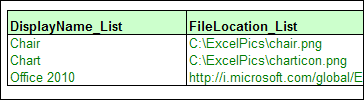
In Ron's sample file, the list of picture file names is in a range named LU_DisplayName. The picture names and file locations are in a range named LU_Name_FileLoc_XRef.
在Ron的示例文件中,图片文件名列表位于名为LU_DisplayName的范围内。 图片名称和文件位置在名为LU_Name_FileLoc_XRef的范围内。
选择图片 (Select a Picture)
Using data validation, Ron created a drop down list where users can select one of the picture file names. The data validation cell is named rngDisplayName.
Ron使用数据验证创建了一个下拉列表,用户可以在其中选择图片文件名称之一。 数据验证单元名为rngDisplayName。
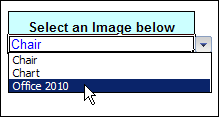
A VLOOKUP formula returns the location of the selected picture file, in a cell named rngFileLocation.
VLOOKUP公式在名为rngFileLocation的单元格中返回所选图片文件的位置。

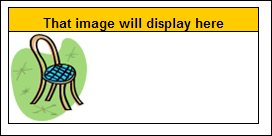
The selected picture is displayed in a range named rngPicDisplayCells.
所选图片显示在名为rngPicDisplayCells的范围内。
这个怎么运作 (How It Works)
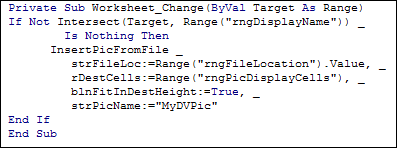
To make the selected picture show on the worksheet, Ron added some event code to the worksheet. When the data validation cells changes, the code runs, and shows the selected picture file.
为了使选定的图片显示在工作表上,Ron在工作表中添加了一些事件代码。 当数据验证单元更改时,代码将运行并显示所选的图片文件。
详细说明 (Detailed Instructions)
In Ron's sample file, you can view the detailed instructions for setting up the workbook and displaying the pictures.
在Ron的示例文件中,您可以查看有关设置工作簿和显示图片的详细说明。
He describes the data validation setup, the named range formulas and the VBA code to make everything work.
他介绍了数据验证设置,命名范围公式和VBA代码,以使所有功能正常运行。
下载样本文件 (Download the Sample File)
To see how the picture display works, you can download Ron's sample file from the Contextures website.
若要查看图片显示的工作原理,可以从Contextures网站下载Ron的示例文件 。
In the "Charts and Graphs" section, look for "RCH0002 - Insert Pictures from Folder".
在“图表”中,查找“ RCH0002-从文件夹插入图片”。
The file contains macros, so you'll have to enable them to test the file. There are two versions of the file -- one for Excel 2007 an done for earlier versions. Both sample files are zipped. __________________
该文件包含宏,因此您必须使它们能够测试文件。 该文件有两个版本-一个用于Excel 2007,一个用于早期版本。 两个示例文件均已压缩。 __________________
翻译自: https://contexturesblog.com/archives/2010/06/18/show-network-pictures-in-excel-workbook/





 已为社区贡献3条内容

所有评论(0)