Taro+vue3开发的小程序自定义富文本编辑器-editor
·
#笔记记录
使用微信小程序原生自定义富文本编辑器。
微信小程序官方文档:editor | 微信开放文档
效果:
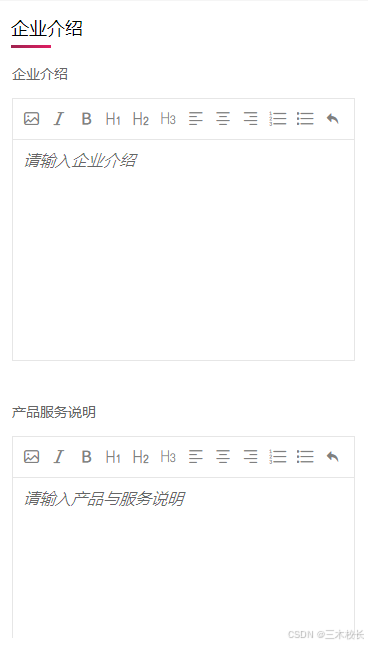
1·、先封装一个富文本配置组件:WeEditor.vue
其中,icon是已经在根目录的app.js中引入:import "./assets/iconfont/iconfont.css"
icon自行挑选网址:iconfont-阿里巴巴矢量图标库
<template>
	<view class="editor-box">
		<view class="border-line">
			<view class="editor-box-header">
				<view class="operate-box" v-for="(item, index) in config" :key="index" @tap="handleEditor(item)">
					<text :class="['iconfont', item.iconfont]" />
				</view>
			</view>
			<view class="editor-box-content">
				<editor
					ref="editor"
					:id="editorId"
					class="editor"
					:value="editorValue"
					:placeholder="placeholder"
					:read-only="readOnly"
					show-img-size
					show-img-toolbar
					show-img-resize
					@blur="onEditorBlur"
					@ready="onEditorReady"
					@input="onEditorInput"></editor>
			</view>
		</view>
	</view>
</template>
<script setup>
	import { reactive, ref } from "vue"
	import Taro from "@tarojs/taro"
	import { useUploadFile } from "@/hooks/network" //自定义上传图片组件
	import { useProcessStatus } from "@/hooks/form"

	const editor = ref(null)

	const state = reactive({
		editorCtx: "",
	})

	const editorId = `editor_${new Date().getTime()}`

    //导入本地配置图标,根据自定义需求找
    const config = [
		{
			iconfont: "icon-tupian",
			name: "image",
			value: "",
		},
		{
			iconfont: "icon-xieti",
			name: "italic",
			value: "",
		},
		{
			iconfont: "icon-jiacu",
			name: "bold",
			value: "",
		},
		{
			iconfont: "icon-yijibiaoti",
			name: "header",
			value: "h1",
		},

		{
			iconfont: "icon-erjibiaoti",
			name: "header",
			value: "h2",
		},

		{
			iconfont: "icon-sanjibiaoti",
			name: "header",
			value: "h3",
		},
		{
			iconfont: "icon-zuoduiqi",
			name: "align",
			value: "left",
		},
		{
			iconfont: "icon-juzhongduiqi",
			name: "align",
			value: "center",
		},
		{
			iconfont: "icon-youduiqi",
			name: "align",
			value: "right",
		},
		{
			iconfont: "icon-youxuliebiao",
			name: "list",
			value: "ordered",
		},
		{
			iconfont: "icon-wuxuliebiao",
			name: "list",
			value: "bullet",
		},
		{
			iconfont: "icon-chexiao",
			name: "undo",
			value: "",
		},
	]

	const props = defineProps({
		readOnly: {
			type: Boolean,
			default: false,
		},
		placeholder: {
			type: String,
			default: "请输入图文详情",
		},
		editorValue: {
			type: String,
			default: "",
		},
	})

	const emits = defineEmits(["editorInput"])

	const onEditorReady = () => {
		Taro.createSelectorQuery()
			.select(`#${editorId}`)
			.context((res) => {
				state.editorCtx = res.context
				setTimeout(() => {
					if (props.editorValue) {
						state.editorCtx.setContents({
							html: props.editorValue,
						})
					} else {
						state.editorCtx.setContents({
							html: "",
						})
					}
					state.editorCtx.blur()
					Taro.pageScrollTo({
						scrollTop: 0,
						duration: 0,
					})
				}, 100)
			})
			.exec()
	}

	const handleEditor = (item) => {
		const type = item.name
		const val = item.value
		if (type === "image") {
			onAddImage()
		} else if (type === "undo") {
			undo()
		} else {
			onFormat(type, val)
		}
	}

	const onEditorBlur = () => {
		state.editorCtx.blur()
	}

	// 插入图片
	const onAddImage = (event) => {
		Taro.chooseMedia({
			count: 1,
			sizeType: ["image", "video"],
			sourceType: ["album"],
			success: (res) => {
				Taro.showLoading({
					title: "上传中",
					mask: true,
				})
				onUploadImage(res.tempFiles[0])
			},
		})
	}
	const onUploadImage = async (tempFilePath) => {
           //自定义的图片上传路径
		let res = await useUploadFile(tempFilePath.tempFilePath)
//处理成功狗的造册
		useProcessStatus(res, {
			success() {
				state.editorCtx.insertImage({
					src: res.result.url,
				})
				Taro.hideLoading()
			},
			fail() {
				Taro.showToast({
					icon: "error",
					title: "上传失败",
					mask: true,
				})
				Taro.hideLoading()
			},
		})
	}
	const onFormat = (type, val) => {
		state.editorCtx.format(type, val)
	}
	// 撤销
	const undo = () => {
		state.editorCtx.undo()
	}
	// 监控输入
	const onEditorInput = (e) => {
		const html = e.detail.html
        //当输入数据再清空时,会遗留一个带标签的<br .>,这样的的必填则无意义,在此清空更换掉
		if (!e.detail.text.replace(/\n|\r/g, "")) {
			emits("editorInput", "")
		} else {
			emits("editorInput", html)
		}
	}
</script>

<style lang="scss">
	.iconfont {
		font-size: 34rpx;
	}

	.editor-box {
		width: 100%;
		padding: 28rpx;
		box-sizing: border-box;
		background-color: #fff;

		.border-line {
			border: 1rpx solid #e6e6e6;
			.editor-box-header,
			.editor-box-content {
				width: 100%;
			}
			.editor-box-header {
				display: flex;
				flex-flow: row nowrap;
				align-items: center;
				justify-content: space-between;
				padding: 20rpx;
				box-sizing: border-box;
				border-bottom: 2rpx solid #e6e6e6;
				.operate-box {
					width: 40rpx;
					height: 40rpx;
					overflow: hidden;
					color: gray;
					.active {
						font-weight: bold;
						color: #000;
					}
				}
			}

			.editor-box-content {
				padding: 20rpx;
				box-sizing: border-box;
				.editor {
					height: auto;
					color: var(--nut-title-color);
				}
			}
		}
	}

	.ql-container {
		height: auto;
		color: var(--nut-title-color);
		line-height: 1.2;
	}
</style>
2、导入以上组件到同级目录下的index,js
import WeEditor from "./WeEditor.vue"

export {WeEditor}
3、在页面使用:
导人组件:
import { WeEditor } from "@/components"使用组件:
<WeEditor :editor-value="state.value" placeholder="请填写分会简介" @editorInput="onEditorInput" />
魔乐社区(Modelers.cn) 是一个中立、公益的人工智能社区,提供人工智能工具、模型、数据的托管、展示与应用协同服务,为人工智能开发及爱好者搭建开放的学习交流平台。社区通过理事会方式运作,由全产业链共同建设、共同运营、共同享有,推动国产AI生态繁荣发展。
更多推荐


 3
3 0
0- 0


 已为社区贡献2条内容

所有评论(0)