阿里云CentOS7手动部署LNMP环境PHP7.4.4
步骤一:准备编译环境
- 远程连接Linux实例。
- 关闭防火墙。
- 运行systemctl status firewalld命令查看当前防火墙的状态。

- 如果防火墙的状态参数是inactive,则防火墙为关闭状态。
- 如果防火墙的状态参数是active,则防火墙为开启状态。本示例中防火墙为开启状态,因此需要关闭防火墙。
- 关闭防火墙。如果防火墙为关闭状态可以忽略此步骤。
- 如果您想临时关闭防火墙,运行命令systemctl stop firewalld。
说明 这只是暂时关闭防火墙,下次重启Linux后,防火墙还会开启。
- 如果您想永久关闭防火墙,运行命令systemctl disable firewalld。
说明 如果您想重新开启防火墙,请参见firewalld官网信息。
- 如果您想临时关闭防火墙,运行命令systemctl stop firewalld。
- 运行systemctl status firewalld命令查看当前防火墙的状态。
- 关闭SELinux。
- 运行getenforce命令查看SELinux的当前状态。

- 如果SELinux状态参数是Disabled,则SELinux为关闭状态。
- 如果SELinux状态参数是Enforcing,则SELinux为开启状态。本示例中SELinux为开启状态,因此需要关闭SELinux。
- 关闭SELinux。如果SELinux为关闭状态可以忽略此步骤。
- 如果您想临时关闭SELinux,运行命令setenforce 0。
说明 这只是暂时关闭SELinux,下次重启Linux后,SELinux还会开启。
- 如果您想永久关闭SELinux,运行命令vim /etc/selinux/config编辑SELinux配置文件。回车后,把光标移动到
SELINUX=enforcing这一行,按i键进入编辑模式,修改为SELINUX=disabled,按Esc键,然后输入:wq并按Enter键以保存并关闭SELinux配置文件。说明 如果您想重新开启SELinux,请参见SELinux的官方文档。
- 如果您想临时关闭SELinux,运行命令setenforce 0。
- 重启系统使设置生效。
- 运行getenforce命令查看SELinux的当前状态。


步骤二:安装Nginx
- 运行以下命令安装Nginx。
yum -y install nginx - 运行以下命令查看Nginx版本。
返回结果如下所示,表示Nginx安装成功。nginx -vnginx version: nginx/1.16.1
步骤三:安装MySQL
- 运行以下命令更新YUM源。
rpm -Uvh http://dev.mysql.com/get/mysql57-community-release-el7-9.noarch.rpm - 运行以下命令安装MySQL。
yum -y install mysql-community-server - 运行以下命令查看MySQL版本号。
返回结果如下所示,表示MySQL安装成功。mysql -Vmysql Ver 14.14 Distrib 5.7.28, for Linux (x86_64) using EditLine wrapper
步骤四:安装PHP
- 下载安装编译工具
yum groupinstall 'Development Tools' - 安装依赖包
yum install libxml2 libxml2-devel openssl openssl-devel bzip2 bzip2-devel libcurl libcurl-devel libjpeg libjpeg-devel libpng libpng-devel freetype freetype-devel gmp gmp-devel libmcrypt libmcrypt-devel readline readline-devel libxslt libxslt-devel zlib zlib-devel glibc glibc-devel glib2 glib2-devel ncurses curl gdbm-devel db4-devel libXpm-devel libX11-devel gd-devel gmp-devel expat-devel xmlrpc-c xmlrpc-c-devel libicu-devel libmcrypt-devel libmemcached-devel -
下载并解压php7.4
wget http://php.net/distributions/php-7.4.4.tar.gz tar -zxvf php-7.4.4.tar.gz cd php-7.4.4 -
编译安装(./configure --help 查看编译参数)
编译前,新增用户组,用户,用于编译使用
groupadd www
useradd -g www www
开始编译(根据自己需要增减)
./configure --prefix=/usr/local/php --with-config-file-path=/usr/local/php/etc --with-fpm-user=www --with-fpm-group=www --with-curl --with-freetype --enable-gd --with-gettext --with-iconv-dir --with-kerberos --with-libdir=lib64 --with-mysqli --with-openssl --with-pcre-regex --with-pdo-mysql --with-pdo-sqlite --with-pear --with-png-dir --with-jpeg-dir --with-xmlrpc --with-xsl --with-zlib --with-bz2 --with-mhash --enable-fpm --enable-bcmath --enable-inline-optimization --enable-mbregex --enable-mbstring --enable-opcache --enable-pcntl --enable-shmop --enable-soap --enable-sockets --enable-sysvsem --enable-sysvshm --enable-xml --with-zip --enable-fpm这里需要注意的是在php7.4 编译参数 --with-gd 要改成了 --enable-gd
当报错checking for libzip... configure: error: system libzip must be upgraded to version >= 0.11
#先删除旧版本
yum remove -y libzip

#下载编译安装
wget https://nih.at/libzip/libzip-1.2.0.tar.gz
tar -zxvf libzip-1.2.0.tar.gz
cd libzip-1.2.0
./configure
make && make install
export PKG_CONFIG_PATH="/usr/local/lib/pkgconfig/"
当报错:ERROR: failed to open error_log (/usr/local/php/var/log/php-fpm.log): Read-only file system (30)
解决方法:
打开 /usr/lib/systemd/system/php-fpm.service 把
ProtectSystem=true
改成
ProtectSystem=false

当这个值为true的时候,php-fpm进程将以只读的方式挂载 /usr 目录,这就是问题所在。具体可参考
https://www.freedesktop.org/software/systemd/man/systemd.exec.html#ProtectSystem=
当:error: Package requirements (sqlite3 > 3.7.4) were not met
yum install libsqlite3x-devel -y当yum install 提示 "没可用软件包"
yum install -y epel-releaseoff_t undefined 报错
configure: error: off_t undefined; check your library configurationoff_t 类型是在 头文件 unistd.h中定义的,
在32位系统 编程成 long int ,64位系统则编译成 long long int ,
在进行编译的时候 是默认查找64位的动态链接库,
但是默认情况下 centos 的动态链接库配置文件/etc/ld.so.conf里并没有加入搜索路径,
这个时候需要将 /usr/local/lib64 /usr/lib64 这些针对64位的库文件路径加进去。#添加搜索路径到配置文件 echo '/usr/local/lib64 /usr/local/lib /usr/lib /usr/lib64'>>/etc/ld.so.conf #然后 更新配置 ldconfig -v/usr/local/include/zip.h:59:21: fatal error: zipconf.h: No such file or directory
cp /usr/local/lib/libzip/include/zipconf.h /usr/local/include/zipconf.h编译没问题了,执行make && make install 安装完毕
-
配置环境
执行完安装命令后php7.4就已经安装在到了/usr/local/php目录下了/usr/local/php/bin/php -v查看版本
添加环境变量vim /etc/profile添加到最后
PATH=$PATH:/usr/local/php/bin
export PATH
更新环境变量
source /etc/profile查看版本
php -v
-
配置php-fpm
cp php.ini-production /etc/php.ini
cp /usr/local/php/etc/php-fpm.conf.default /usr/local/php/etc/php-fpm.conf
cp /usr/local/php/etc/php-fpm.d/www.conf.default /usr/local/php/etc/php-fpm.d/www.conf
cp sapi/fpm/init.d.php-fpm /etc/init.d/php-fpm
chmod +x /etc/init.d/php-fpm
启动php-fpm
/etc/init.d/php-fpm start
或者
service php-fpm start
或者
cp php-7.4.4/sapi/fpm/php-fpm.service /usr/lib/systemd/system/php-fpm.service
systemctl start php-fpm.service
systemctl enable php-fpm.service
步骤五:配置Nginx
- 运行以下命令备份Nginx配置文件。
cp /etc/nginx/nginx.conf /etc/nginx/nginx.conf.bak - 修改Nginx配置文件,添加Nginx对PHP的支持。
说明 若不添加此配置信息,后续您使用浏览器访问PHP页面时,页面将无法显示。
- 运行以下命令打开Nginx配置文件。
vim /etc/nginx/nginx.conf - 按i进入编辑模式。
- 在
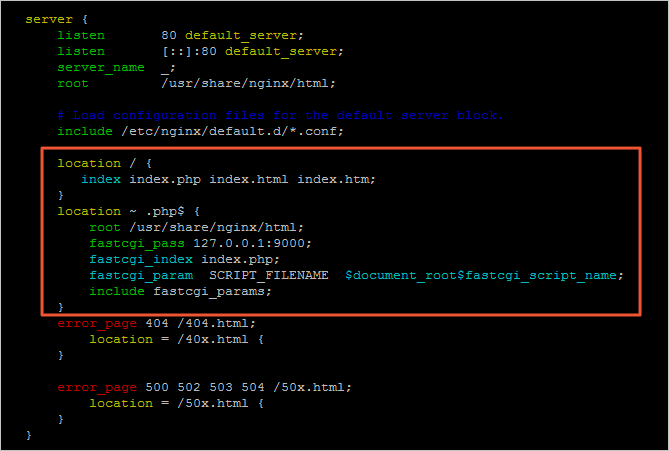
server大括号内,添加下列配置信息。#除下面提及的需要添加的配置信息外,其他配置保持默认值即可。 location / { #在location大括号内添加以下信息,配置网站被访问时的默认首页 index index.php index.html index.htm; } #添加下列信息,配置Nginx通过fastcgi方式处理您的PHP请求 location ~ .php$ { root /usr/share/nginx/html; #将/usr/share/nginx/html替换为您的网站根目录,本教程使用/usr/share/nginx/html作为网站根目录 fastcgi_pass 127.0.0.1:9000; #Nginx通过本机的9000端口将PHP请求转发给PHP-FPM进行处理 fastcgi_index index.php; fastcgi_param SCRIPT_FILENAME $document_root$fastcgi_script_name; include fastcgi_params; #Nginx调用fastcgi接口处理PHP请求 }添加配置信息后,如下图所示。
- 按下Esc键后,输入:wq并回车以保存并关闭配置文件。
- 运行以下命令打开Nginx配置文件。
- 运行以下命令启动Nginx服务。
systemctl start nginx - 运行以下命令设置Nginx服务开机自启动。
systemctl enable nginx

步骤六:配置MySQL
- 运行以下命令启动MySQL服务。
systemctl start mysqld - 运行以下命令设置MySQL服务开机自启动。
systemctl enable mysqld - 运行以下命令查看/var/log/mysqld.log文件,获取并记录root用户的初始密码。
grep 'temporary password' /var/log/mysqld.log返回结果如下:
2016-12-13T14:57:47.535748Z 1 [Note] A temporary password is generated for root@localhost: p0/G28g>lsHD说明 下一步重置root用户密码时,会使用该初始密码。
- 运行以下命令配置MySQL的安全性。
mysql_secure_installation安全性的配置包含以下五个方面:
- 重置root账号密码。
Enter password for user root: #输入上一步获取的root用户初始密码 The 'validate_password' plugin is installed on the server. The subsequent steps will run with the existing configuration of the plugin. Using existing password for root. Estimated strength of the password: 100 Change the password for root ? (Press y|Y for Yes, any other key for No) : Y #是否更改root用户密码,输入Y New password: #输入新密码,长度为8至30个字符,必须同时包含大小写英文字母、数字和特殊符号。特殊符号可以是()` ~!@#$%^&*-+=|{}[]:;‘<>,.?/ Re-enter new password: #再次输入新密码 Estimated strength of the password: 100 Do you wish to continue with the password provided?(Press y|Y for Yes, any other key for No) : Y - 输入Y删除匿名用户账号。
By default, a MySQL installation has an anonymous user, allowing anyone to log into MySQL without having to have a user account created for them. This is intended only for testing, and to make the installation go a bit smoother. You should remove them before moving into a production environment. Remove anonymous users? (Press y|Y for Yes, any other key for No) : Y #是否删除匿名用户,输入Y Success. - 输入Y禁止root账号远程登录。
Disallow root login remotely? (Press y|Y for Yes, any other key for No) : Y #禁止root远程登录,输入Y Success. - 输入Y删除test库以及对test库的访问权限。
Remove test database and access to it? (Press y|Y for Yes, any other key for No) : Y #是否删除test库和对它的访问权限,输入Y - Dropping test database... Success. - 输入Y重新加载授权表。
Reload privilege tables now? (Press y|Y for Yes, any other key for No) : Y #是否重新加载授权表,输入Y
Success.
All done!
- 重置root账号密码。
更多详情,请参见MySQL文档。
步骤七:配置PHP
- 新建phpinfo.php文件,用于展示phpinfo信息。
- 运行以下命令新建文件。
vim <网站根目录>/phpinfo.php #将<网站根目录>替换为您配置的网站根目录。网站根目录是您在nginx.conf文件中
location ~ .php$大括号内配置的root值,如下图所示。
本教程配置的网站根目录为/usr/share/nginx/html,因此命令为:
vim /usr/share/nginx/html/phpinfo.php - 按i进入编辑模式。
- 输入下列内容。
<?php echo phpinfo(); ?> - 按Esc键后,输入:wq并回车以保存并关闭配置文件。
- 运行以下命令新建文件。
- 运行以下命令启动PHP-FPM。
systemctl start php-fpm - 运行以下命令设置PHP-FPM开机自启动。
systemctl enable php-fpm

步骤八:测试访问LNMP平台
- 打开浏览器。
- 在地址栏输入
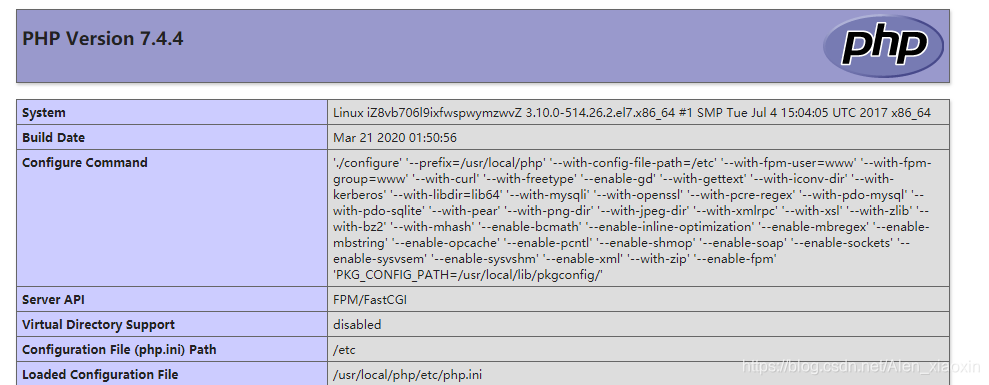
http://<ECS实例公网IP地址>/phpinfo.php。返回结果如下图所示,表示LNMP环境部署成功。
后续步骤
测试访问LNMP平台成功后,建议您运行以下命令将phpinfo.php文件删除,消除安全隐患。
rm -rf <网站根目录>/phpinfo.php #将<网站根目录>替换为您在nginx.conf中配置的网站根目录本教程配置的网站根目录为/usr/share/nginx/html,因此命令为:
rm -rf /usr/share/nginx/html/phpinfo.php
魔乐社区(Modelers.cn) 是一个中立、公益的人工智能社区,提供人工智能工具、模型、数据的托管、展示与应用协同服务,为人工智能开发及爱好者搭建开放的学习交流平台。社区通过理事会方式运作,由全产业链共同建设、共同运营、共同享有,推动国产AI生态繁荣发展。
更多推荐


 0
0 0
0- 0


 已为社区贡献3条内容

所有评论(0)