Habor 私有容器镜像仓库部署
docker-ce 安装
这里使用的是docker-compose的方式部署harbor镜像仓库,以容器化方式部署,
单机节点
获取 docker-ce 软件源
[root@harbor ~]# curl -o /etc/yum.repos.d/docker-ce.repo https://mirrors.aliyun.com/docker-ce/linux/centos/docker-ce.repo
  % Total    % Received % Xferd  Average Speed   Time    Time     Time  Current
                                 Dload  Upload   Total   Spent    Left  Speed
100  2081  100  2081    0     0   7167      0 --:--:-- --:--:-- --:--:--  7175
这里获取阿里云的docker-ce源,下载到本地的yum.repos.d目录中
安装docker-ce
[root@harbor ~]# yum install -y docker-ce
已加载插件:fastestmirror
Determining fastest mirrors
* base: mirrors.aliyun.com
* extras: mirrors.aliyun.com
* updates: mirrors.aliyun.com
base | 3.6 kB 00:00:00
docker-ce-stable | 3.5 kB 00:00:00
extras | 2.9 kB 00:00:00
updates | 2.9 kB 00:00:00
(1/2): docker-ce-stable/7/x86_64/updateinfo | 55 B 00:00:00
(2/2): docker-ce-stable/7/x86_64/primary_db | 152 kB 00:00:00
正在解决依赖关系
--> 正在检查事务
---> 软件包 docker-ce.x86_64.3.26.1.4-1.el7 将被 安装
--> 正在处理依赖关系 container-selinux >= 2:2.74,它被软件包 3:docker-ce-26.1.4-1.el7.x86_64 需要
--> 正在处理依赖关系 containerd.io >= 1.6.24,它被软件包 3:docker-ce-26.1.4-1.el7.x86_64 需要
--> 正在处理依赖关系 docker-ce-cli,它被软件包 3:docker-ce-26.1.4-1.el7.x86_64 需要
--> 正在处理依赖关系 docker-ce-rootless-extras,它被软件包 3:docker-ce-26.1.4-1.el7.x86_64 需要
--> 正在处理依赖关系 libcgroup,它被软件包 3:docker-ce-26.1.4-1.el7.x86_64 需要
--> 正在检查事务
---> 软件包 container-selinux.noarch.2.2.119.2-1.911c772.el7_8 将被 安装
--> 正在处理依赖关系 policycoreutils-python,它被软件包 2:container-selinux-2.119.2-1.911c772.el7_8.noarch 需要
---> 软件包 containerd.io.x86_64.0.1.6.33-3.1.el7 将被 安装
---> 软件包 docker-ce-cli.x86_64.1.26.1.4-1.el7 将被 安装
--> 正在处理依赖关系 docker-buildx-plugin,它被软件包 1:docker-ce-cli-26.1.4-1.el7.x86_64 需要
--> 正在处理依赖关系 docker-compose-plugin,它被软件包 1:docker-ce-cli-26.1.4-1.el7.x86_64 需要
---> 软件包 docker-ce-rootless-extras.x86_64.0.26.1.4-1.el7 将被 安装
--> 正在处理依赖关系 fuse-overlayfs >= 0.7,它被软件包 docker-ce-rootless-extras-26.1.4-1.el7.x86_64 需要
--> 正在处理依赖关系 slirp4netns >= 0.4,它被软件包 docker-ce-rootless-extras-26.1.4-1.el7.x86_64 需要
---> 软件包 libcgroup.x86_64.0.0.41-21.el7 将被 安装
--> 正在检查事务
---> 软件包 docker-buildx-plugin.x86_64.0.0.14.1-1.el7 将被 安装
---> 软件包 docker-compose-plugin.x86_64.0.2.27.1-1.el7 将被 安装
---> 软件包 fuse-overlayfs.x86_64.0.0.7.2-6.el7_8 将被 安装
--> 正在处理依赖关系 libfuse3.so.3(FUSE_3.2)(64bit),它被软件包 fuse-overlayfs-0.7.2-6.el7_8.x86_64 需要
--> 正在处理依赖关系 libfuse3.so.3(FUSE_3.0)(64bit),它被软件包 fuse-overlayfs-0.7.2-6.el7_8.x86_64 需要
--> 正在处理依赖关系 libfuse3.so.3()(64bit),它被软件包 fuse-overlayfs-0.7.2-6.el7_8.x86_64 需要
---> 软件包 policycoreutils-python.x86_64.0.2.5-34.el7 将被 安装
--> 正在处理依赖关系 setools-libs >= 3.3.8-4,它被软件包 policycoreutils-python-2.5-34.el7.x86_64 需要
--> 正在处理依赖关系 libsemanage-python >= 2.5-14,它被软件包 policycoreutils-python-2.5-34.el7.x86_64 需要
--> 正在处理依赖关系 audit-libs-python >= 2.1.3-4,它被软件包 policycoreutils-python-2.5-34.el7.x86_64 需要
--> 正在处理依赖关系 python-IPy,它被软件包 policycoreutils-python-2.5-34.el7.x86_64 需要
--> 正在处理依赖关系 libqpol.so.1(VERS_1.4)(64bit),它被软件包 policycoreutils-python-2.5-34.el7.x86_64 需要
--> 正在处理依赖关系 libqpol.so.1(VERS_1.2)(64bit),它被软件包 policycoreutils-python-2.5-34.el7.x86_64 需要
--> 正在处理依赖关系 libapol.so.4(VERS_4.0)(64bit),它被软件包 policycoreutils-python-2.5-34.el7.x86_64 需要
--> 正在处理依赖关系 checkpolicy,它被软件包 policycoreutils-python-2.5-34.el7.x86_64 需要
--> 正在处理依赖关系 libqpol.so.1()(64bit),它被软件包 policycoreutils-python-2.5-34.el7.x86_64 需要
--> 正在处理依赖关系 libapol.so.4()(64bit),它被软件包 policycoreutils-python-2.5-34.el7.x86_64 需要
---> 软件包 slirp4netns.x86_64.0.0.4.3-4.el7_8 将被 安装
--> 正在检查事务
---> 软件包 audit-libs-python.x86_64.0.2.8.5-4.el7 将被 安装
---> 软件包 checkpolicy.x86_64.0.2.5-8.el7 将被 安装
---> 软件包 fuse3-libs.x86_64.0.3.6.1-4.el7 将被 安装
---> 软件包 libsemanage-python.x86_64.0.2.5-14.el7 将被 安装
---> 软件包 python-IPy.noarch.0.0.75-6.el7 将被 安装
---> 软件包 setools-libs.x86_64.0.3.3.8-4.el7 将被 安装
--> 解决依赖关系完成
依赖关系解决
========================================================================================================================================================================================================
Package 架构 版本 源 大小
========================================================================================================================================================================================================
正在安装:
docker-ce x86_64 3:26.1.4-1.el7 docker-ce-stable 27 M
为依赖而安装:
audit-libs-python x86_64 2.8.5-4.el7 base 76 k
checkpolicy x86_64 2.5-8.el7 base 295 k
container-selinux noarch 2:2.119.2-1.911c772.el7_8 extras 40 k
containerd.io x86_64 1.6.33-3.1.el7 docker-ce-stable 35 M
docker-buildx-plugin x86_64 0.14.1-1.el7 docker-ce-stable 14 M
docker-ce-cli x86_64 1:26.1.4-1.el7 docker-ce-stable 15 M
docker-ce-rootless-extras x86_64 26.1.4-1.el7 docker-ce-stable 9.4 M
docker-compose-plugin x86_64 2.27.1-1.el7 docker-ce-stable 13 M
fuse-overlayfs x86_64 0.7.2-6.el7_8 extras 54 k
fuse3-libs x86_64 3.6.1-4.el7 extras 82 k
libcgroup x86_64 0.41-21.el7 base 66 k
libsemanage-python x86_64 2.5-14.el7 base 113 k
policycoreutils-python x86_64 2.5-34.el7 base 457 k
python-IPy noarch 0.75-6.el7 base 32 k
setools-libs x86_64 3.3.8-4.el7 base 620 k
slirp4netns x86_64 0.4.3-4.el7_8 extras 81 k
事务概要
========================================================================================================================================================================================================
安装 1 软件包 (+16 依赖软件包)
总下载量:116 M
安装大小:407 M
Downloading packages:
(1/17): audit-libs-python-2.8.5-4.el7.x86_64.rpm | 76 kB 00:00:00
(2/17): container-selinux-2.119.2-1.911c772.el7_8.noarch.rpm | 40 kB 00:00:00
(3/17): checkpolicy-2.5-8.el7.x86_64.rpm | 295 kB 00:00:00
warning: /var/cache/yum/x86_64/7/docker-ce-stable/packages/docker-buildx-plugin-0.14.1-1.el7.x86_64.rpm: Header V4 RSA/SHA512 Signature, key ID 621e9f35: NOKEY ] 11 MB/s | 8.0 MB 00:00:10 ETA
docker-buildx-plugin-0.14.1-1.el7.x86_64.rpm 的公钥尚未安装
(4/17): docker-buildx-plugin-0.14.1-1.el7.x86_64.rpm | 14 MB 00:00:00
(5/17): containerd.io-1.6.33-3.1.el7.x86_64.rpm | 35 MB 00:00:02
(6/17): docker-ce-26.1.4-1.el7.x86_64.rpm | 27 MB 00:00:01
(7/17): docker-ce-rootless-extras-26.1.4-1.el7.x86_64.rpm | 9.4 MB 00:00:00
(8/17): docker-ce-cli-26.1.4-1.el7.x86_64.rpm | 15 MB 00:00:00
(9/17): fuse-overlayfs-0.7.2-6.el7_8.x86_64.rpm | 54 kB 00:00:00
(10/17): libcgroup-0.41-21.el7.x86_64.rpm | 66 kB 00:00:00
(11/17): fuse3-libs-3.6.1-4.el7.x86_64.rpm | 82 kB 00:00:00
(12/17): docker-compose-plugin-2.27.1-1.el7.x86_64.rpm | 13 MB 00:00:00
(13/17): libsemanage-python-2.5-14.el7.x86_64.rpm | 113 kB 00:00:00
(14/17): policycoreutils-python-2.5-34.el7.x86_64.rpm | 457 kB 00:00:00
(15/17): python-IPy-0.75-6.el7.noarch.rpm | 32 kB 00:00:00
(16/17): setools-libs-3.3.8-4.el7.x86_64.rpm | 620 kB 00:00:00
(17/17): slirp4netns-0.4.3-4.el7_8.x86_64.rpm | 81 kB 00:00:00
--------------------------------------------------------------------------------------------------------------------------------------------------------------------------------------------------------
总计 36 MB/s | 116 MB 00:00:03
从 https://mirrors.aliyun.com/docker-ce/linux/centos/gpg 检索密钥
导入 GPG key 0x621E9F35:
用户ID : "Docker Release (CE rpm) <docker@docker.com>"
指纹 : 060a 61c5 1b55 8a7f 742b 77aa c52f eb6b 621e 9f35
来自 : https://mirrors.aliyun.com/docker-ce/linux/centos/gpg
Running transaction check
Running transaction test
Transaction test succeeded
Running transaction
正在安装 : libcgroup-0.41-21.el7.x86_64 1/17
正在安装 : setools-libs-3.3.8-4.el7.x86_64 2/17
正在安装 : audit-libs-python-2.8.5-4.el7.x86_64 3/17
正在安装 : slirp4netns-0.4.3-4.el7_8.x86_64 4/17
正在安装 : libsemanage-python-2.5-14.el7.x86_64 5/17
正在安装 : python-IPy-0.75-6.el7.noarch 6/17
正在安装 : docker-compose-plugin-2.27.1-1.el7.x86_64 7/17
正在安装 : fuse3-libs-3.6.1-4.el7.x86_64 8/17
正在安装 : fuse-overlayfs-0.7.2-6.el7_8.x86_64 9/17
正在安装 : checkpolicy-2.5-8.el7.x86_64 10/17
正在安装 : policycoreutils-python-2.5-34.el7.x86_64 11/17
正在安装 : 2:container-selinux-2.119.2-1.911c772.el7_8.noarch 12/17
正在安装 : containerd.io-1.6.33-3.1.el7.x86_64 13/17
正在安装 : docker-buildx-plugin-0.14.1-1.el7.x86_64 14/17
正在安装 : 1:docker-ce-cli-26.1.4-1.el7.x86_64 15/17
正在安装 : docker-ce-rootless-extras-26.1.4-1.el7.x86_64 16/17
正在安装 : 3:docker-ce-26.1.4-1.el7.x86_64 17/17
验证中 : docker-buildx-plugin-0.14.1-1.el7.x86_64 1/17
验证中 : checkpolicy-2.5-8.el7.x86_64 2/17
验证中 : fuse3-libs-3.6.1-4.el7.x86_64 3/17
验证中 : docker-compose-plugin-2.27.1-1.el7.x86_64 4/17
验证中 : python-IPy-0.75-6.el7.noarch 5/17
验证中 : fuse-overlayfs-0.7.2-6.el7_8.x86_64 6/17
验证中 : libsemanage-python-2.5-14.el7.x86_64 7/17
验证中 : slirp4netns-0.4.3-4.el7_8.x86_64 8/17
验证中 : 2:container-selinux-2.119.2-1.911c772.el7_8.noarch 9/17
验证中 : containerd.io-1.6.33-3.1.el7.x86_64 10/17
验证中 : 3:docker-ce-26.1.4-1.el7.x86_64 11/17
验证中 : policycoreutils-python-2.5-34.el7.x86_64 12/17
验证中 : docker-ce-rootless-extras-26.1.4-1.el7.x86_64 13/17
验证中 : audit-libs-python-2.8.5-4.el7.x86_64 14/17
验证中 : setools-libs-3.3.8-4.el7.x86_64 15/17
验证中 : 1:docker-ce-cli-26.1.4-1.el7.x86_64 16/17
验证中 : libcgroup-0.41-21.el7.x86_64 17/17
已安装:
docker-ce.x86_64 3:26.1.4-1.el7
作为依赖被安装:
audit-libs-python.x86_64 0:2.8.5-4.el7 checkpolicy.x86_64 0:2.5-8.el7 container-selinux.noarch 2:2.119.2-1.911c772.el7_8 containerd.io.x86_64 0:1.6.33-3.1.el7
docker-buildx-plugin.x86_64 0:0.14.1-1.el7 docker-ce-cli.x86_64 1:26.1.4-1.el7 docker-ce-rootless-extras.x86_64 0:26.1.4-1.el7 docker-compose-plugin.x86_64 0:2.27.1-1.el7
fuse-overlayfs.x86_64 0:0.7.2-6.el7_8 fuse3-libs.x86_64 0:3.6.1-4.el7 libcgroup.x86_64 0:0.41-21.el7 libsemanage-python.x86_64 0:2.5-14.el7
policycoreutils-python.x86_64 0:2.5-34.el7 python-IPy.noarch 0:0.75-6.el7 setools-libs.x86_64 0:3.3.8-4.el7 slirp4netns.x86_64 0:0.4.3-4.el7_8
完毕!启动docker
[root@harbor ~]# systemctl enable --now docker
Created symlink from /etc/systemd/system/multi-user.target.wants/docker.service to /usr/lib/systemd/system/docker.service.
注:这里将docker 一并设置了开机自启动
如果是systemctl start 进行的启动,
需要在使用systemctl enable 命令,进行docker的开机自启,否则,重启后,docker的容器会无法启动,
检查docker 是否安装成功
[root@harbor ~]# docker version
Client: Docker Engine - Community
 Version:           26.1.4
 API version:       1.45
 Go version:        go1.21.11
 Git commit:        5650f9b
 Built:             Wed Jun  5 11:32:04 2024
 OS/Arch:           linux/amd64
 Context:           default

Server: Docker Engine - Community
 Engine:
  Version:          26.1.4
  API version:      1.45 (minimum version 1.24)
  Go version:       go1.21.11
  Git commit:       de5c9cf
  Built:            Wed Jun  5 11:31:02 2024
  OS/Arch:          linux/amd64
  Experimental:     false
 containerd:
  Version:          1.6.33
  GitCommit:        d2d58213f83a351ca8f528a95fbd145f5654e957
 runc:
  Version:          1.1.12
  GitCommit:        v1.1.12-0-g51d5e94
 docker-init:
  Version:          0.19.0
  GitCommit:        de40ad0


[root@harbor ~]# docker info
Client: Docker Engine - Community
 Version:    26.1.4
 Context:    default
 Debug Mode: false
 Plugins:
  buildx: Docker Buildx (Docker Inc.)
    Version:  v0.14.1
    Path:     /usr/libexec/docker/cli-plugins/docker-buildx
  compose: Docker Compose (Docker Inc.)
    Version:  v2.27.1
    Path:     /usr/libexec/docker/cli-plugins/docker-compose

Server:
 Containers: 0
  Running: 0
  Paused: 0
  Stopped: 0
 Images: 0
 Server Version: 26.1.4
 Storage Driver: overlay2
  Backing Filesystem: xfs
  Supports d_type: true
  Using metacopy: false
  Native Overlay Diff: true
  userxattr: false
 Logging Driver: json-file
 Cgroup Driver: cgroupfs
 Cgroup Version: 1
 Plugins:
  Volume: local
  Network: bridge host ipvlan macvlan null overlay
  Log: awslogs fluentd gcplogs gelf journald json-file local splunk syslog
 Swarm: inactive
 Runtimes: runc io.containerd.runc.v2
 Default Runtime: runc
 Init Binary: docker-init
 containerd version: d2d58213f83a351ca8f528a95fbd145f5654e957
 runc version: v1.1.12-0-g51d5e94
 init version: de40ad0
 Security Options:
  seccomp
   Profile: builtin
 Kernel Version: 3.10.0-1160.el7.x86_64
 Operating System: CentOS Linux 7 (Core)
 OSType: linux
 Architecture: x86_64
 CPUs: 2
 Total Memory: 1.777GiB
 Name: harbor
 ID: 2a28a43a-b3db-44df-99c2-977c8b828c80
 Docker Root Dir: /var/lib/docker
 Debug Mode: false
 Experimental: false
 Insecure Registries:
  127.0.0.0/8
 Live Restore Enabled: false

WARNING: bridge-nf-call-iptables is disabled
WARNING: bridge-nf-call-ip6tables is disabled
docker version检查了 docker的clilent端和server端的对应版本
docker info用于检查docker的基本配置,包含镜像仓库,cgroup等
注:这里的警告是关于网络的内核模块没有加载,可能会导致对应的网络错误出现
解决方法:
modprobe [模块名字]
安装docker-compose
参考链接: https://github.com/docker/compose/releases https://github.com/docker/compose/releases
使用wget 获取docker-compose的二进制文件
[root@harbor ~]# wget https://github.com/docker/compose/releases/download/v2.38.0/docker-compose-linux-x86_64如果出现如下情况:
[root@harbor ~]# wget https://github.com/docker/compose/releases/download/v2.38.0/docker-compose-linux-x86_64
bash: wget: 未找到命令
使用yum install 命令 进行安装wget软件
[root@harbor ~]# yum install -y wget
已加载插件:fastestmirror
Loading mirror speeds from cached hostfile
 * base: mirrors.aliyun.com
 * extras: mirrors.aliyun.com
 * updates: mirrors.aliyun.com
正在解决依赖关系
--> 正在检查事务
---> 软件包 wget.x86_64.0.1.14-18.el7_6.1 将被 安装
--> 解决依赖关系完成

依赖关系解决

========================================================================================================================================================================================================
 Package                                      架构                                           版本                                                    源                                            大小
========================================================================================================================================================================================================
正在安装:
 wget                                         x86_64                                         1.14-18.el7_6.1                                         base                                         547 k

事务概要
========================================================================================================================================================================================================
安装  1 软件包

总下载量:547 k
安装大小:2.0 M
Downloading packages:
wget-1.14-18.el7_6.1.x86_64.rpm                                                                                                                                                  | 547 kB  00:00:00
Running transaction check
Running transaction test
Transaction test succeeded
Running transaction
  正在安装    : wget-1.14-18.el7_6.1.x86_64                                                                                                                                                         1/1
  验证中      : wget-1.14-18.el7_6.1.x86_64                                                                                                                                                         1/1

已安装:
  wget.x86_64 0:1.14-18.el7_6.1

完毕!
下载docker-compose二进制文件后,检查是否下载成功
[root@harbor ~]# ls
docker-compose-linux-x86_64
将docker-compose二进制文件移动至bin目录下,作为全局命令使用,并给予执行权限
[root@harbor ~]# mv docker-compose-linux-x86_64 /usr/local/bin/docker-compose
[root@harbor ~]# chmod +x /usr/local/bin/docker-compose
检查是否配置成功
[root@harbor ~]# ls
[root@harbor ~]# pwd
/root
[root@harbor ~]# docker-compose version
Docker Compose version v2.38.0
成功配置完成,可以在全局任意目录,执行docker-compose命令
前置操作完成后,开始部署harbor容器镜像仓库
参考链接:https://github.com/goharbor/harbor/releaseshttps://github.com/goharbor/harbor/releases
下载harbor软件包
[root@harbor ~]# wget https://github.com/goharbor/harbor/releases/download/v2.14.0/harbor-offline-installer-v2.14.0.tgz检查是否下载成功:
[root@harbor ~]# ll -h
总用量 637M
-rw-r--r--. 1 root root 637M 9月  17 14:05 harbor-offline-installer-v2.14.0.tgz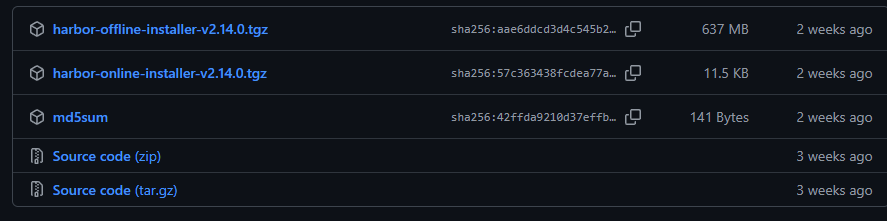
具体大小可以通过提供的参考链接 跳转进行检查
将下载的harbor软件包解压
[root@harbor ~]# tar -xvf harbor-offline-installer-v2.14.0.tgz -C /usr/local/
harbor/harbor.v2.14.0.tar.gz
harbor/prepare
harbor/LICENSE
harbor/install.sh
harbor/common.sh
harbor/harbor.yml.tmpl
部署harbor镜像仓库
[root@harbor harbor]# cp harbor.yml.tmpl harbor.yml首先将提供的harbor配置模板复制一份
编辑harbor.yml
[root@harbor harbor]# grep -Env '#|^$' harbor.yml
5:hostname: harbor.test
8:http:
10:  port: 80
47:harbor_admin_password: 123
66:data_volume: /data
这里展示相对重要的需要配置的段:
5:配置harbor主机访问的主机名,可以自己指定一个,需要在hosts文件中指定
10:没有进行注释就是使用,使用http请求对harbor镜像仓库进行访问
47:设置harbor镜像仓库admin用户的密码
66:设置harbor存储镜像的数据卷存放位置,这里选择了根目录下的data
[root@harbor harbor]# vi harbor.yml
#https:
  # https port for harbor, default is 443
 # port: 443
  # The path of cert and key files for nginx
 # certificate: /your/certificate/path
 # private_key: /your/private/key/path
  # enable strong ssl ciphers (default: false)
  # strong_ssl_ciphers: false
默认配置https是开放的,这里我将https进行注释,禁止了,如果有SSL证书可以启用,为安全的容器私有镜像仓库
根据harbor.yml中的hostname 设置映射
[root@harbor harbor]# echo "192.168.87.35 harbor.test" >> /etc/hosts
[root@harbor harbor]# ping harbor.test -c 2
PING harbor.test (192.168.87.35) 56(84) bytes of data.
64 bytes from harbor.test (192.168.87.35): icmp_seq=1 ttl=64 time=0.051 ms
64 bytes from harbor.test (192.168.87.35): icmp_seq=2 ttl=64 time=0.048 ms

--- harbor.test ping statistics ---
2 packets transmitted, 2 received, 0% packet loss, time 999ms
rtt min/avg/max/mdev = 0.048/0.049/0.051/0.007 ms
如果有本地DNS服务器则无需这一步,没有的话需要做一个主机映射
harbor.yml配置完成后开始部署harbor镜像仓库
[root@harbor harbor]# pwd
/usr/local/harbor
[root@harbor harbor]# ls
common.sh  harbor.v2.14.0.tar.gz  harbor.yml  harbor.yml.tmpl  install.sh  LICENSE  prepare
[root@harbor harbor]# ./prepare
出现错误:
[root@harbor harbor]# ./prepare
prepare base dir is set to /usr/local/harbor
Unable to find image 'goharbor/prepare:v2.14.0' locally
docker: Error response from daemon: Get "https://registry-1.docker.io/v2/": net/http: request canceled while waiting for connection (Client.Timeout exceeded while awaiting headers).
See 'docker run --help'.
这个错误是docker 从网络中进行拉取镜像操作,超时错误
这是正常的,因为docker没有本地的镜像仓库或者没有配置镜像加速器时,这些大部分的镜像仓库都是无法拉取成功
解决方法:
harbor软件包这么大是他自带了harbor使用的容器镜像,这里没检测到,所以直接从网络中拉取
可以再次执行,如果依然是这样,可以自己手动导入进行,再进行harbor初始化操作
[root@harbor harbor]# docker load < harbor.v2.14.0.tar.gz
5dd32317cf96: Loading layer [==================================================>]  40.82MB/40.82MB
e959dc37d186: Loading layer [==================================================>]  16.49MB/16.49MB
2cd016989b45: Loading layer [==================================================>]  175.3MB/175.3MB
c477c7fe5160: Loading layer [==================================================>]  26.59MB/26.59MB
14b19a3a10a0: Loading layer [==================================================>]  18.59MB/18.59MB
d05ad82c41db: Loading layer [==================================================>]   5.12kB/5.12kB
1c14d9a1a9c0: Loading layer [==================================================>]  6.144kB/6.144kB
04b0441a1d4d: Loading layer [==================================================>]  3.072kB/3.072kB
19378685fc53: Loading layer [==================================================>]  2.048kB/2.048kB
26781eaaebd9: Loading layer [==================================================>]   2.56kB/2.56kB
5db0caa837d5: Loading layer [==================================================>]  14.85kB/14.85kB
Loaded image: goharbor/harbor-db:v2.14.0
5d851e2a1093: Loading layer [==================================================>]  125.2MB/125.2MB
343ea1f9f01a: Loading layer [==================================================>]  3.584kB/3.584kB
f494fdbb1706: Loading layer [==================================================>]  3.072kB/3.072kB
daed9a74821e: Loading layer [==================================================>]   2.56kB/2.56kB
f2d7c23374ea: Loading layer [==================================================>]  3.072kB/3.072kB
68170287aff9: Loading layer [==================================================>]  3.584kB/3.584kB
111f5dc74343: Loading layer [==================================================>]  20.48kB/20.48kB
Loaded image: goharbor/harbor-log:v2.14.0
a76efeb95db6: Loading layer [==================================================>]  9.162MB/9.162MB
3b3f22ce738a: Loading layer [==================================================>]  4.096kB/4.096kB
1a843a98313c: Loading layer [==================================================>]  3.072kB/3.072kB
d0d666c85032: Loading layer [==================================================>]  155.3MB/155.3MB
f26e603cbfeb: Loading layer [==================================================>]  16.49MB/16.49MB
cf96ac74f5f4: Loading layer [==================================================>]  172.6MB/172.6MB
Loaded image: goharbor/trivy-adapter-photon:v2.14.0
1bd3ff6de6c7: Loading layer [==================================================>]  16.49MB/16.49MB
48e35ad952ee: Loading layer [==================================================>]  110.5MB/110.5MB
e3140dab4118: Loading layer [==================================================>]  3.072kB/3.072kB
7f1e309cfc13: Loading layer [==================================================>]   59.9kB/59.9kB
87a5ef88148b: Loading layer [==================================================>]  61.95kB/61.95kB
Loaded image: goharbor/redis-photon:v2.14.0
d3dda50ad797: Loading layer [==================================================>]  112.3MB/112.3MB
Loaded image: goharbor/nginx-photon:v2.14.0
a527857ee623: Loading layer [==================================================>]  8.661MB/8.661MB
8c4ac2a0acab: Loading layer [==================================================>]  4.096kB/4.096kB
ad50297b7979: Loading layer [==================================================>]  3.072kB/3.072kB
a3691511d386: Loading layer [==================================================>]  18.96MB/18.96MB
3d88da6fc880: Loading layer [==================================================>]  19.76MB/19.76MB
Loaded image: goharbor/registry-photon:v2.14.0
b5e4ded37c34: Loading layer [==================================================>]  102.8MB/102.8MB
f9aa914c3423: Loading layer [==================================================>]   42.2MB/42.2MB
512aec7e0a63: Loading layer [==================================================>]  13.98MB/13.98MB
718229382536: Loading layer [==================================================>]  66.05kB/66.05kB
e290d0d1d461: Loading layer [==================================================>]   2.56kB/2.56kB
3e8b7c41f18b: Loading layer [==================================================>]  1.536kB/1.536kB
ed24e244e53e: Loading layer [==================================================>]  9.728kB/9.728kB
c762c2342983: Loading layer [==================================================>]  1.106MB/1.106MB
48df6a3bf03f: Loading layer [==================================================>]  596.5kB/596.5kB
Loaded image: goharbor/prepare:v2.14.0
048116257f39: Loading layer [==================================================>]  112.3MB/112.3MB
f154ae201402: Loading layer [==================================================>]  6.979MB/6.979MB
7103bac664c9: Loading layer [==================================================>]  253.4kB/253.4kB
73b30dcd2110: Loading layer [==================================================>]  1.539MB/1.539MB
Loaded image: goharbor/harbor-portal:v2.14.0
87592cb61177: Loading layer [==================================================>]  11.62MB/11.62MB
b61ec4a12f24: Loading layer [==================================================>]  3.584kB/3.584kB
11ca2cb60a99: Loading layer [==================================================>]   2.56kB/2.56kB
2fff6be7637d: Loading layer [==================================================>]  75.23MB/75.23MB
cd68804425cb: Loading layer [==================================================>]  5.632kB/5.632kB
22e7951ad38f: Loading layer [==================================================>]    129kB/129kB
2eab5f954eb7: Loading layer [==================================================>]  209.9kB/209.9kB
b553052d8ff9: Loading layer [==================================================>]  76.36MB/76.36MB
28a8326e903d: Loading layer [==================================================>]   2.56kB/2.56kB
Loaded image: goharbor/harbor-core:v2.14.0
0c33b0e9524b: Loading layer [==================================================>]  11.62MB/11.62MB
76cbfcebe181: Loading layer [==================================================>]  3.584kB/3.584kB
3e4cc3f35f30: Loading layer [==================================================>]   2.56kB/2.56kB
4d3c846a78c9: Loading layer [==================================================>]   63.4MB/63.4MB
710f51a0bd54: Loading layer [==================================================>]  64.19MB/64.19MB
Loaded image: goharbor/harbor-jobservice:v2.14.0
7d26adb546d7: Loading layer [==================================================>]  8.661MB/8.661MB
e5dcb4c390be: Loading layer [==================================================>]  4.096kB/4.096kB
63dd40e26115: Loading layer [==================================================>]  18.96MB/18.96MB
f7d9210aac9e: Loading layer [==================================================>]  3.072kB/3.072kB
e4ba205c0e89: Loading layer [==================================================>]  39.08MB/39.08MB
e92488fc5ede: Loading layer [==================================================>]  58.83MB/58.83MB
Loaded image: goharbor/harbor-registryctl:v2.14.0
73ac7af54136: Loading layer [==================================================>]  11.62MB/11.62MB
b9937c3e3dc4: Loading layer [==================================================>]  40.22MB/40.22MB
db12238a7180: Loading layer [==================================================>]  4.608kB/4.608kB
61c440c209f7: Loading layer [==================================================>]  41.01MB/41.01MB
Loaded image: goharbor/harbor-exporter:v2.14.0
这里将容器镜像手动导入后,再次进行初始化操作
初始化:
[root@harbor harbor]# ./prepare
prepare base dir is set to /usr/local/harbor
WARNING:root:WARNING: HTTP protocol is insecure. Harbor will deprecate http protocol in the future. Please make sure to upgrade to https
Generated configuration file: /config/portal/nginx.conf
Generated configuration file: /config/log/logrotate.conf
Generated configuration file: /config/log/rsyslog_docker.conf
Generated configuration file: /config/nginx/nginx.conf
Generated configuration file: /config/core/env
Generated configuration file: /config/core/app.conf
Generated configuration file: /config/registry/config.yml
Generated configuration file: /config/registryctl/env
Generated configuration file: /config/registryctl/config.yml
Generated configuration file: /config/db/env
Generated configuration file: /config/jobservice/env
Generated configuration file: /config/jobservice/config.yml
copy /data/secret/tls/harbor_internal_ca.crt to shared trust ca dir as name harbor_internal_ca.crt ...
ca file /hostfs/data/secret/tls/harbor_internal_ca.crt is not exist
copy  to shared trust ca dir as name storage_ca_bundle.crt ...
copy None to shared trust ca dir as name redis_tls_ca.crt ...
Generated and saved secret to file: /data/secret/keys/secretkey
Successfully called func: create_root_cert
Generated configuration file: /compose_location/docker-compose.yml
Clean up the input dir
这里初始化,将harbor需要使用的docker-compose文件,以及其他的配置文件都生成出来
注:其中的警告是提示http请求访问不安全导致,如果需要使用https,但没有网络SSL证书,可以使用openssl进行自签名证书的创建
安装harbor
[root@harbor harbor]# ./install.sh

[Step 0]: checking if docker is installed ...

Note: docker version: 26.1.4

[Step 1]: checking docker-compose is installed ...

Note: Docker Compose version v2.27.1

[Step 2]: loading Harbor images ...
Loaded image: goharbor/harbor-db:v2.14.0
Loaded image: goharbor/harbor-log:v2.14.0
Loaded image: goharbor/trivy-adapter-photon:v2.14.0
Loaded image: goharbor/redis-photon:v2.14.0
Loaded image: goharbor/nginx-photon:v2.14.0
Loaded image: goharbor/registry-photon:v2.14.0
Loaded image: goharbor/prepare:v2.14.0
Loaded image: goharbor/harbor-portal:v2.14.0
Loaded image: goharbor/harbor-core:v2.14.0
Loaded image: goharbor/harbor-jobservice:v2.14.0
Loaded image: goharbor/harbor-registryctl:v2.14.0
Loaded image: goharbor/harbor-exporter:v2.14.0


[Step 3]: preparing environment ...

[Step 4]: preparing harbor configs ...
prepare base dir is set to /usr/local/harbor
WARNING:root:WARNING: HTTP protocol is insecure. Harbor will deprecate http protocol in the future. Please make sure to upgrade to https
Clearing the configuration file: /config/portal/nginx.conf
Clearing the configuration file: /config/log/logrotate.conf
Clearing the configuration file: /config/log/rsyslog_docker.conf
Clearing the configuration file: /config/nginx/nginx.conf
Clearing the configuration file: /config/core/env
Clearing the configuration file: /config/core/app.conf
Clearing the configuration file: /config/registry/passwd
Clearing the configuration file: /config/registry/config.yml
Clearing the configuration file: /config/registryctl/env
Clearing the configuration file: /config/registryctl/config.yml
Clearing the configuration file: /config/db/env
Clearing the configuration file: /config/jobservice/env
Clearing the configuration file: /config/jobservice/config.yml
Generated configuration file: /config/portal/nginx.conf
Generated configuration file: /config/log/logrotate.conf
Generated configuration file: /config/log/rsyslog_docker.conf
Generated configuration file: /config/nginx/nginx.conf
Generated configuration file: /config/core/env
Generated configuration file: /config/core/app.conf
Generated configuration file: /config/registry/config.yml
Generated configuration file: /config/registryctl/env
Generated configuration file: /config/registryctl/config.yml
Generated configuration file: /config/db/env
Generated configuration file: /config/jobservice/env
Generated configuration file: /config/jobservice/config.yml
copy /data/secret/tls/harbor_internal_ca.crt to shared trust ca dir as name harbor_internal_ca.crt ...
ca file /hostfs/data/secret/tls/harbor_internal_ca.crt is not exist
copy  to shared trust ca dir as name storage_ca_bundle.crt ...
copy None to shared trust ca dir as name redis_tls_ca.crt ...
loaded secret from file: /data/secret/keys/secretkey
Generated configuration file: /compose_location/docker-compose.yml
Clean up the input dir


Note: stopping existing Harbor instance ...


[Step 5]: starting Harbor ...
[+] Running 10/10
 ✔ Network harbor_harbor        Created                                                                                                                                                            0.1s
 ✔ Container harbor-log         Started                                                                                                                                                            0.5s
 ✔ Container harbor-portal      Started                                                                                                                                                            1.2s
 ✔ Container registryctl        Started                                                                                                                                                            1.0s
 ✔ Container harbor-db          Started                                                                                                                                                            1.1s
 ✔ Container redis              Started                                                                                                                                                            1.1s
 ✔ Container registry           Started                                                                                                                                                            1.1s
 ✔ Container harbor-core        Started                                                                                                                                                            1.4s
 ✔ Container harbor-jobservice  Started                                                                                                                                                            1.9s
 ✔ Container nginx              Started                                                                                                                                                            2.1s
✔ ----Harbor has been installed and started successfully.----
初始化完成,可通过浏览器进行web访问:
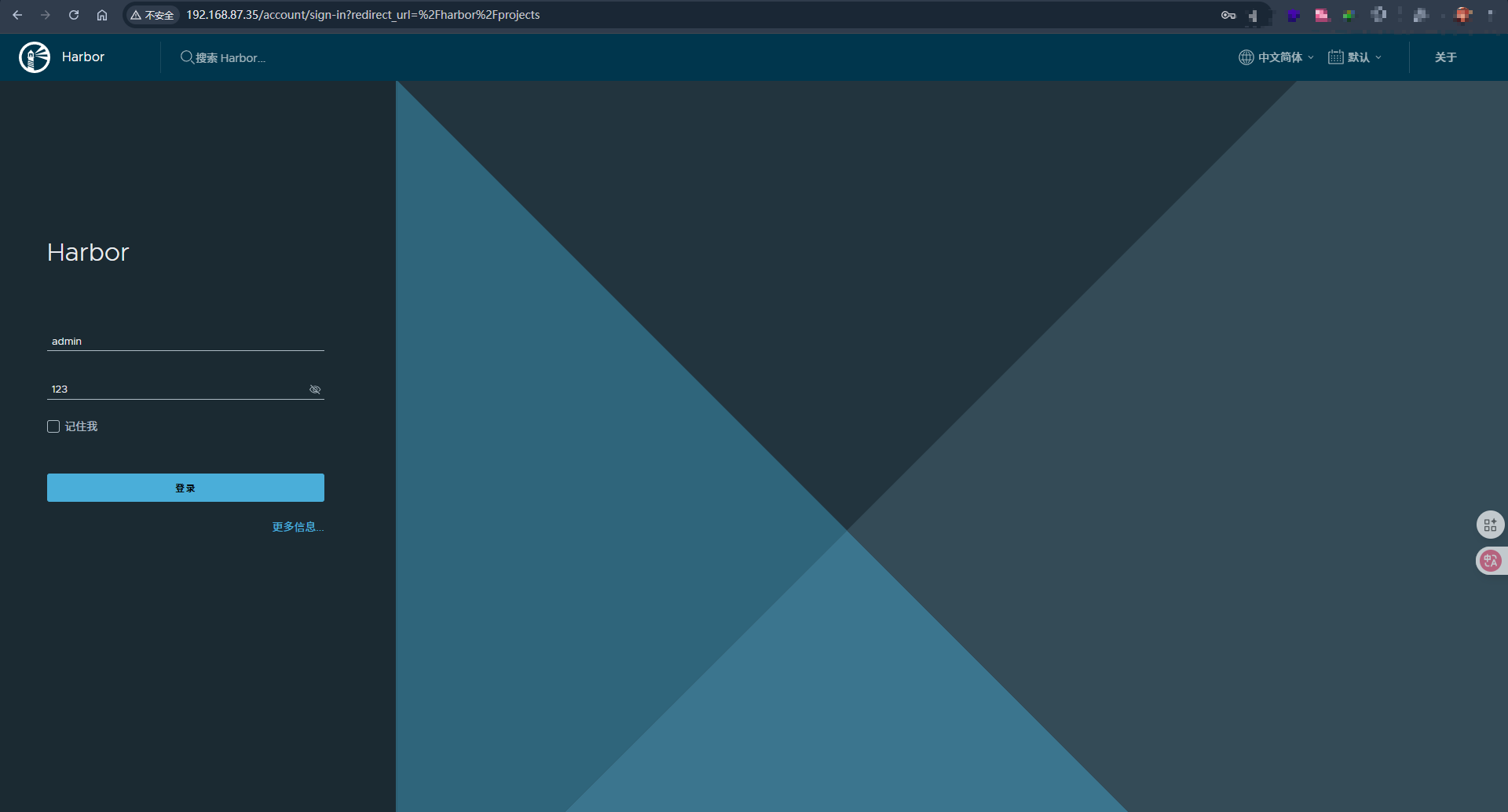
成功通过浏览器进行了web访问,
因为windows主机没有配置hosts文件,进行IP地址的映射,所以这里使用的是IP地址的方式进行的访问
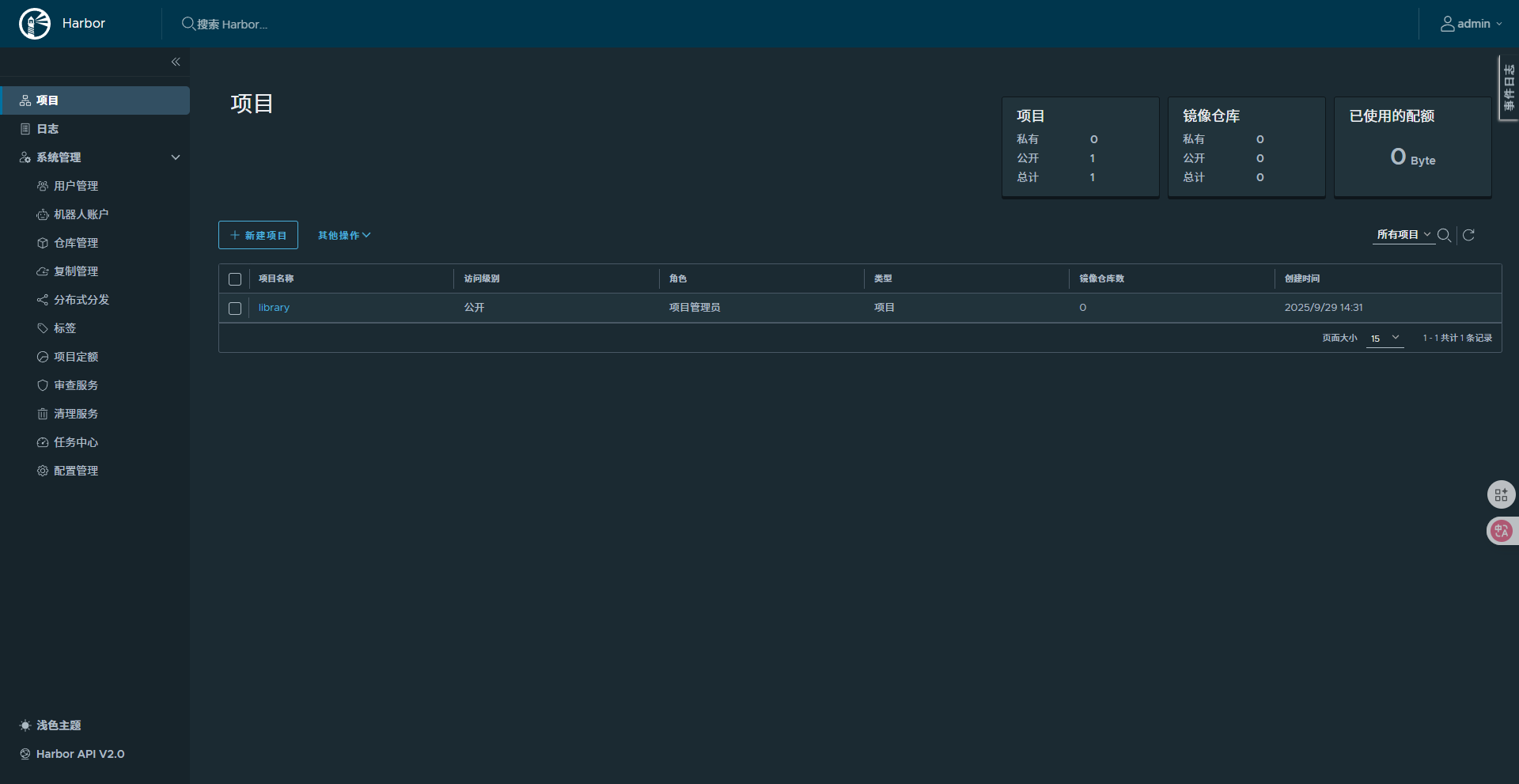
这就是harbor登录后默认的页面了,可以自己新建项目等
总结:
本次使用的是docker容器的形式部署的harbor私有容器镜像仓库,步骤需要安装docker容器,以及docker-compose容器编排工具,最后下载harbor的软件包,进行初始化检查操作,安装harbor镜像仓库
实际原理就是使用docker-compose进行的操作部署,可以使用docker-compose的命令进行查看,关闭和启用harbor

魔乐社区(Modelers.cn) 是一个中立、公益的人工智能社区,提供人工智能工具、模型、数据的托管、展示与应用协同服务,为人工智能开发及爱好者搭建开放的学习交流平台。社区通过理事会方式运作,由全产业链共同建设、共同运营、共同享有,推动国产AI生态繁荣发展。
更多推荐


 18
18 0
0- 0


 已为社区贡献1条内容

所有评论(0)