ubuntu ssh 连接不上
安装ubuntu后,在ubuntu桌面的终端teminal使用ifconfig命令得到ubuntu的ip后,打开我另外一台机器的ssh工具xshell,结果连接不上,好气啊。
项目场景:
使用xshell 连不上 ubuntu
问题描述
安装ubuntu后,在ubuntu桌面的终端teminal使用ifconfig命令得到ubuntu的ip后,打开我另外一台机器的ssh工具xshell,结果连接不上,好气啊
Connecting to 192.168.192.128:22...
Could not connect to '192.168.192.128' (port 22): Connection failed.
原因分析:
Ubuntu默认是不安装SSH服务
百度之后得知,Ubuntu默认是不安装SSH服务的,所以在安装之前可以查看目前系统是否安装
ps -e |grep ssh
如果没有任何输出的话,就说明确实没有安装ssh
解决方案:安装ssh
方式一:
sudo apt-get install ssh
方式二:
sudo apt-get install openssh-client 客户端
sudo apt-get install openssh-server 服务器
以方式一为例
ping@ping-virtual-machine:~$ sudo apt-get install ssh
[sudo] password for ping:
Reading package lists... Done
Building dependency tree... Done
Reading state information... Done
The following additional packages will be installed:
  ncurses-term openssh-server openssh-sftp-server ssh-import-id
Suggested packages:
  molly-guard monkeysphere ssh-askpass
The following NEW packages will be installed:
  ncurses-term openssh-server openssh-sftp-server ssh ssh-import-id
0 upgraded, 5 newly installed, 0 to remove and 34 not upgraded.
Need to get 756 kB of archives.
After this operation, 6,184 kB of additional disk space will be used.
Do you want to continue? [Y/n] y
Get:1 http://mirrors.tuna.tsinghua.edu.cn/ubuntu jammy/main amd64 ssh-import-id all 5.11-0ubuntu1 [10.1 kB]
Get:2 http://security.ubuntu.com/ubuntu jammy-security/main amd64 openssh-sftp-server amd64 1:8.9p1-3ubuntu0.6 [38.7 kB]
Get:3 http://security.ubuntu.com/ubuntu jammy-security/main amd64 openssh-server amd64 1:8.9p1-3ubuntu0.6 [435 kB]
Get:4 http://security.ubuntu.com/ubuntu jammy-security/main amd64 ssh all 1:8.9p1-3ubuntu0.6 [4,850 B]
Get:5 http://security.ubuntu.com/ubuntu jammy-security/main amd64 ncurses-term all 6.3-2ubuntu0.1 [267 kB]
Fetched 756 kB in 2s (326 kB/s)
Preconfiguring packages ...
Selecting previously unselected package openssh-sftp-server.
(Reading database ... 178884 files and directories currently installed.)
Preparing to unpack .../openssh-sftp-server_1%3a8.9p1-3ubuntu0.6_amd64.deb ...
Unpacking openssh-sftp-server (1:8.9p1-3ubuntu0.6) ...
Selecting previously unselected package openssh-server.
Preparing to unpack .../openssh-server_1%3a8.9p1-3ubuntu0.6_amd64.deb ...
Unpacking openssh-server (1:8.9p1-3ubuntu0.6) ...
Selecting previously unselected package ssh.
Preparing to unpack .../ssh_1%3a8.9p1-3ubuntu0.6_all.deb ...
Unpacking ssh (1:8.9p1-3ubuntu0.6) ...
Selecting previously unselected package ncurses-term.
Preparing to unpack .../ncurses-term_6.3-2ubuntu0.1_all.deb ...
Unpacking ncurses-term (6.3-2ubuntu0.1) ...
Selecting previously unselected package ssh-import-id.
Preparing to unpack .../ssh-import-id_5.11-0ubuntu1_all.deb ...
Unpacking ssh-import-id (5.11-0ubuntu1) ...
Setting up openssh-sftp-server (1:8.9p1-3ubuntu0.6) ...
Setting up openssh-server (1:8.9p1-3ubuntu0.6) ...

Creating config file /etc/ssh/sshd_config with new version
Creating SSH2 RSA key; this may take some time ...
3072 SHA256:f+8qZPRprSee2+PVhAoWGe9y7Q8GUNaH7zJqSTFYmKw root@ping-virtual-machine (RSA)
Creating SSH2 ECDSA key; this may take some time ...
256 SHA256:wI0yslqGyGOekp66S8sGezku+9Xsy5llmaU89yYXFR8 root@ping-virtual-machine (ECDSA)
Creating SSH2 ED25519 key; this may take some time ...
256 SHA256:bXrESlo3MSjwEiKxlsfwMc61ab2IrY8XKzUXVQXDMTs root@ping-virtual-machine (ED25519)
Created symlink /etc/systemd/system/sshd.service → /lib/systemd/system/ssh.service.
Created symlink /etc/systemd/system/multi-user.target.wants/ssh.service → /lib/systemd/system/ssh.service.
rescue-ssh.target is a disabled or a static unit, not starting it.
ssh.socket is a disabled or a static unit, not starting it.
Setting up ssh-import-id (5.11-0ubuntu1) ...
Setting up ncurses-term (6.3-2ubuntu0.1) ...
Setting up ssh (1:8.9p1-3ubuntu0.6) ...
Processing triggers for man-db (2.10.2-1) ...
Processing triggers for ufw (0.36.1-4ubuntu0.1) ...
测试
1.还是使用 ps -e |grep ssh 验证一波 ,输出了sshd表示ssh-server已经启动
ps -e |grep ssh
   3605 ?        00:00:00 sshd
2.再连一波,直接成功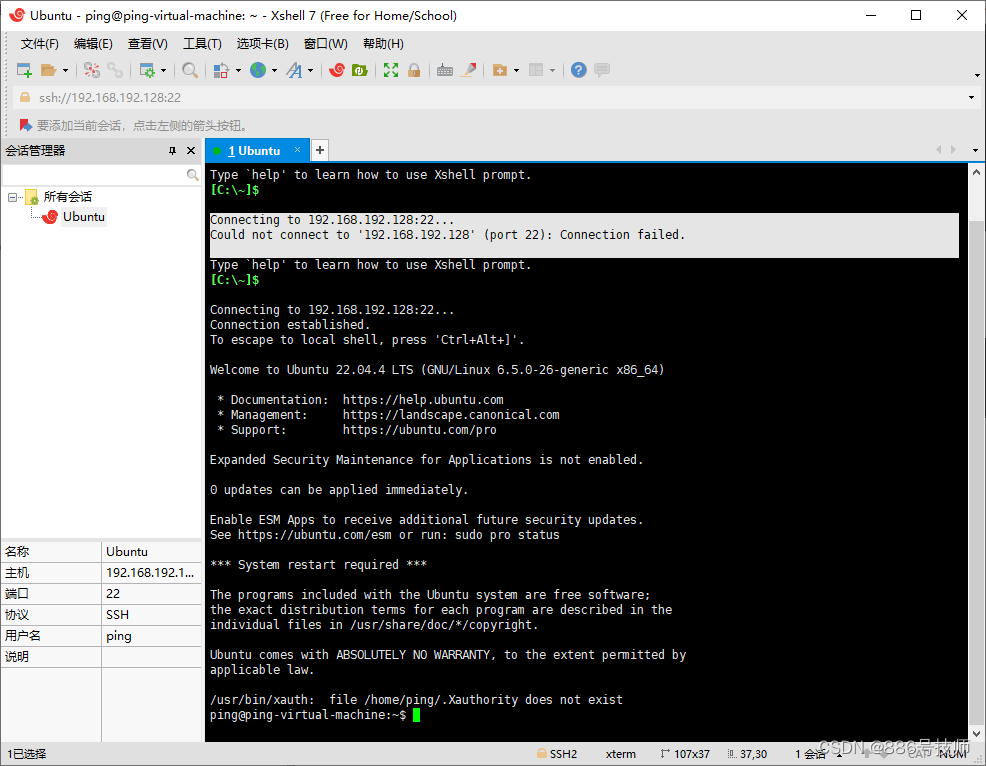
One more thing : root 用户如何通过ssh远程登陆
1.首先需要修改ssh的配置文件
sudo vim /etc/ssh/sshd_config
在配置文件中加上一句话
PermitRootLogin yes
将 PermitRootLogin prohibit-password
先去掉注释并修改为
PermitRootLogin yes
修改后保存并退出
或者直接在后面加上 PermitRootLogin yes 就行了
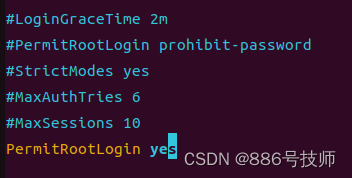
2.重启ssh服务
sudo service ssh restart
或者用这个命令
sudo systemctl restart sshd.service
3.稳得一笔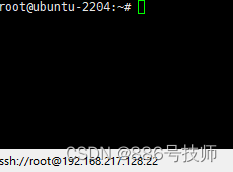

魔乐社区(Modelers.cn) 是一个中立、公益的人工智能社区,提供人工智能工具、模型、数据的托管、展示与应用协同服务,为人工智能开发及爱好者搭建开放的学习交流平台。社区通过理事会方式运作,由全产业链共同建设、共同运营、共同享有,推动国产AI生态繁荣发展。
更多推荐


 5
5 0
0- 0


 已为社区贡献3条内容

所有评论(0)