【linux】2
本文详细介绍了在Ubuntu 22.04系统上配置TigerVNC服务的完整流程,重点解决"目标计算机积极拒绝"连接问题。主要内容包括:安装TigerVNC、设置密码、配置xstartup脚本、启动服务并绑定网络接口、安装XFCE桌面环境等关键步骤。文章还提供了使用x11vnc的替代方案、开机自启配置方法以及常见问题排查指南,最终实现通过TigerVNC Viewer成功连接图
从零配置 VNC 服务:解决“目标计算机积极拒绝”连接问题完整指南
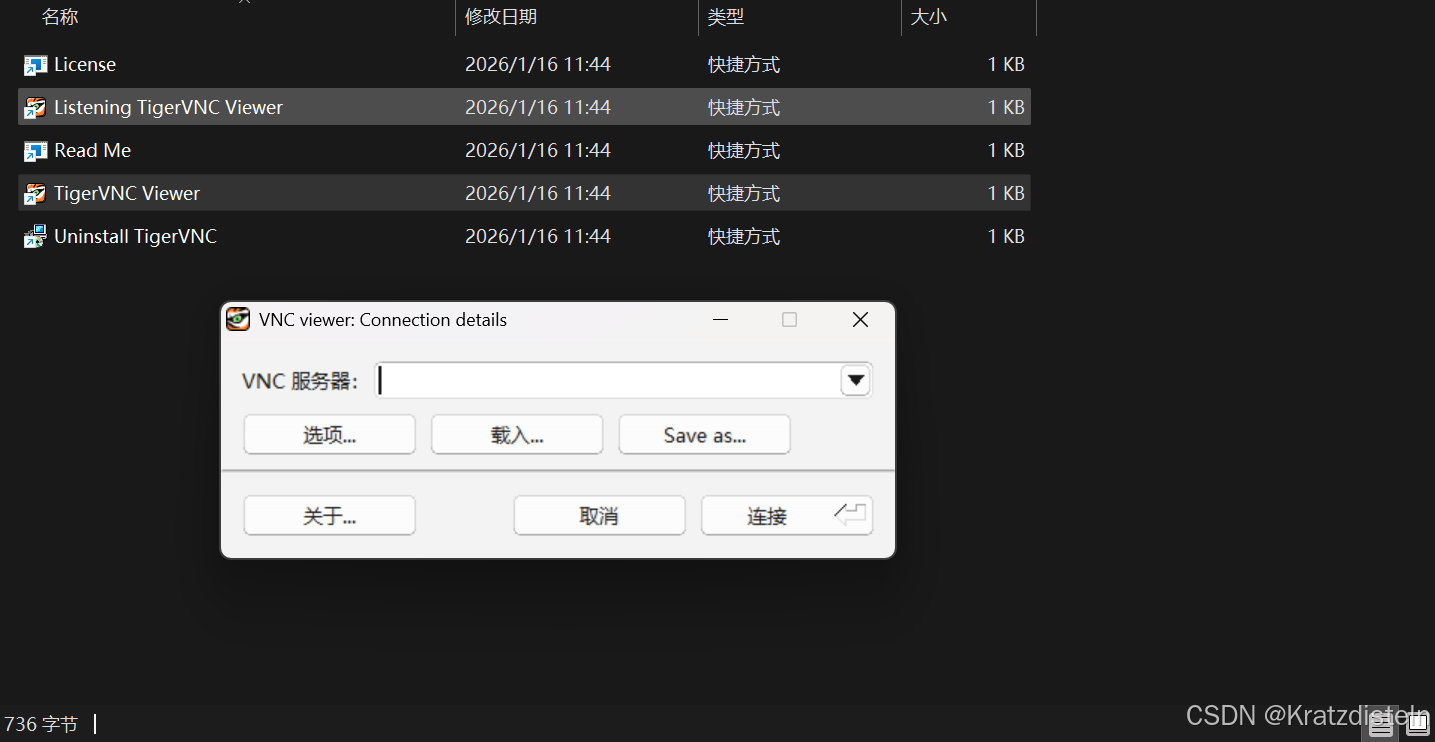
本文记录了在 Linux 服务器(Ubuntu 22.04)上从零配置 TigerVNC 服务的全过程,重点解决客户端连接时出现的错误:
“Unable to connect to socket: 由于目标计算机积极拒绝,无法连接。(10061)”
适用于 Docker 容器、云服务器、本地虚拟机等环境,最终实现通过 TigerVNC Viewer 成功连接图形桌面。
一、环境说明
- 系统:Ubuntu 22.04 LTS(最小化安装)
- 用户:root
- IP 地址:========(内网 IP)
- VNC 端口:5901(对应显示号 :1)
- 桌面环境:XFCE4
- 客户端:Windows 上的 TigerVNC Viewer
二、确认 VNC 服务已安装
首先确认 tigervnc-standalone-server 已安装:
apt update && apt install -y tigervnc-standalone-server
三、设置 VNC 密码
运行以下命令设置密码(首次运行会提示输入):
vncserver
密码将保存在
/root/.vnc/passwd,无需重复设置。
四、配置 xstartup 脚本
编辑 ~/.vnc/xstartup 文件:
nano ~/.vnc/xstartup
确保内容如下:
#!/bin/sh
unset SESSION_MANAGER
unset DBUS_SESSION_BUS_ADDRESS
exec startxfce4
赋予执行权限:
chmod +x ~/.vnc/xstartup
五、启动 VNC 服务并绑定到所有网络接口
vncserver -kill :1 2>/dev/null
vncserver -localhost no :1 -geometry 1280x720 -depth 24
-localhost no:允许外部连接-geometry:设置分辨率-depth:设置颜色深度
六、检查服务是否正常运行
ps aux | grep vnc
输出示例:
root 8320 0.0 0.0 245704 67956 ? Ss 13:24 0:00 /usr/bin/Xtigervnc :1 -localhost=0 -desktop 760inpb4plcdq-0:1 (root) -rfbport 5901 -PasswordFile /root/.vnc/passwd -SecurityTypes VncAuth,TLSVnc -auth /root/.Xauthority -geometry 1280x720 -depth 24
检查端口监听状态:
netstat -tlnp | grep :5901
正常输出应包含:
tcp 0 0 0.0.0.0:5901 0.0.0.0:* LISTEN 8320/Xtigervnc
七、安装 XFCE 桌面环境(如未安装)
apt update && apt install -y xfce4 xfce4-goodies
验证安装:
which startxfce4
应输出:
/usr/bin/startxfce4
八、查看 VNC 服务日志
tail -f ~/.vnc/760inpb4plcdq-0:5901.log
常见错误:
-
Session startup via '/root/.vnc/xstartup' cleanly exited too early (< 3 seconds)!
→ 检查xstartup脚本是否正确。 -
ImportError: libQt5Core.so.5: cannot open shared object file: No such file or directory
→ 无关紧要,不影响 VNC 服务运行。
九、测试最简模式(xterm)
如果桌面环境启动失败,可先测试最简模式:
vncserver -kill :1
vncserver -localhost no :1 -geometry 1280x720 -depth 24 -xstartup /usr/bin/xterm
在客户端连接 localhost:5901,应看到终端窗口。
十、解决“目标计算机积极拒绝”连接问题
10.1 确认客户端与服务器在同一子网
在 Windows 上运行:
ipconfig
确保你的 IP 与服务器在同一网段(如 10.31.26.x)。
10.2 尝试使用 SSH 隧道连接(推荐)
在 Windows 上运行:
ssh -L 5901:localhost:5901 root@10.31.==.===
然后在 VNC 客户端连接:
localhost:5901
10.3 使用 x11vnc 替代 TigerVNC(终极方案)
安装 x11vnc:
apt install -y x11vnc
设置密码:
x11vnc -storepasswd /root/.vnc/passwd
启动服务:
x11vnc -display :1 -passwd /root/.vnc/passwd -localhost no -forever -shared -rfbport 5901
在客户端连接 localhost:5901,即可看到桌面。
十一、配置开机自启(可选)
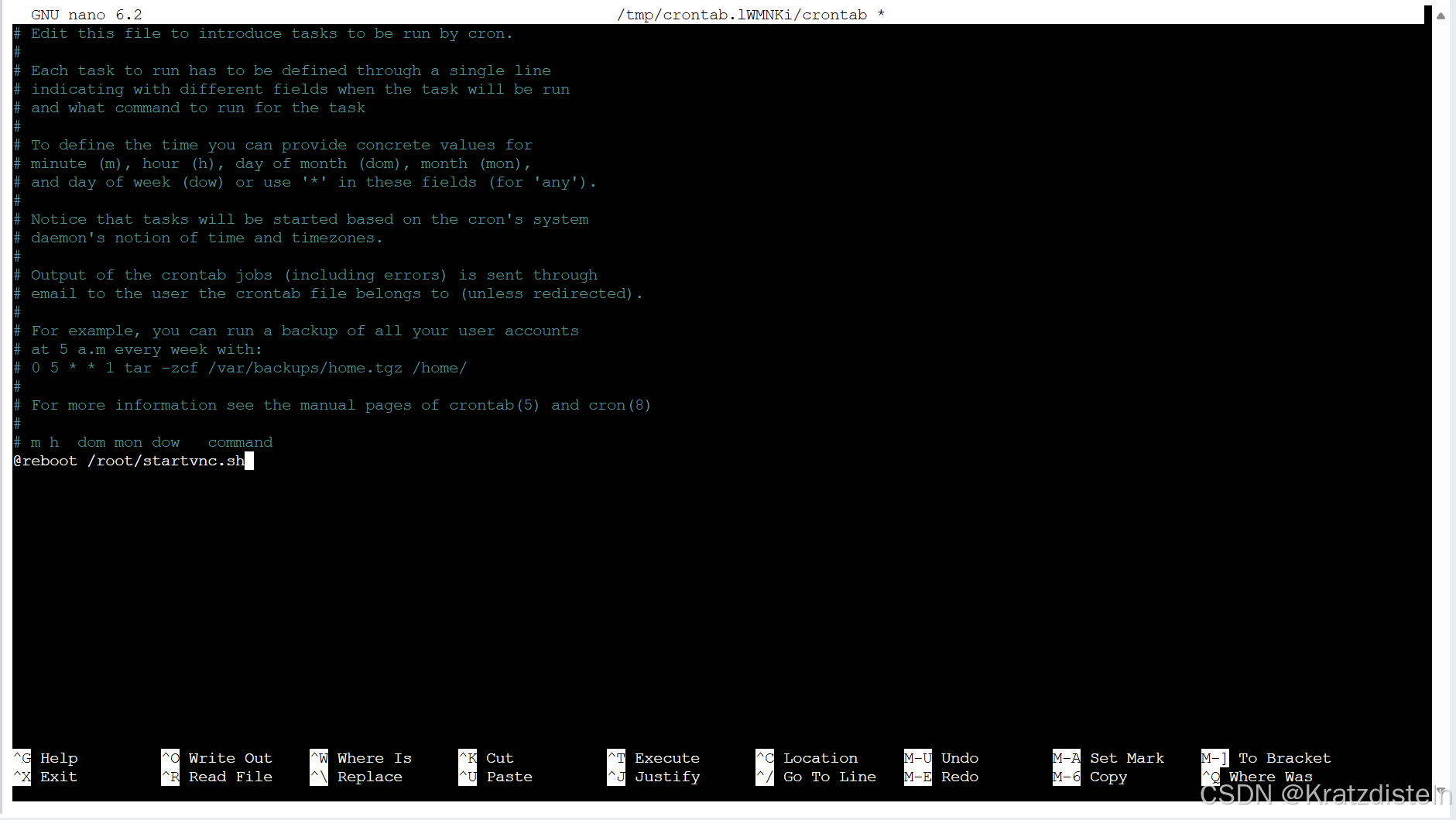
方法一:使用 crontab
编辑 root 的 crontab:
crontab -e
添加:
@reboot /root/startvnc.sh
创建启动脚本:
nano /root/startvnc.sh
内容:
#!/bin/bash
vncserver -kill :1 2>/dev/null
vncserver -localhost no :1 -geometry 1280x720 -depth 24
赋予执行权限:
chmod +x /root/startvnc.sh
十二、安全建议
- 使用强密码;
- 不要开放 5901 端口到公网;
- 推荐使用 SSH 隧道连接;
- 如需公网访问,建议配置 TLS 加密或使用反向代理。
十三、常见问题排查
13.1 “Connection refused” 或 “Connection timed out”
- 检查
netstat -tlnp | grep :5901是否监听0.0.0.0:5901; - 检查防火墙是否放行 5901 端口;
- 检查客户端与服务器是否在同一子网。
13.2 “Session startup via ‘/root/.vnc/xstartup’ cleanly exited too early”
- 检查
xstartup脚本是否正确; - 确保
startxfce4命令存在; - 尝试最简模式测试。
13.3 “libQt5Core.so.5: cannot open shared object file”
-
无关紧要,不影响 VNC 服务运行;
-
可忽略或安装
qt5-default解决:apt install -y qt5-default
十四、总结
本文从零开始配置 VNC 服务,解决“目标计算机积极拒绝”连接问题,最终实现通过 TigerVNC Viewer 成功连接图形桌面。
关键步骤:
- 安装 TigerVNC;
- 设置密码;
- 配置
xstartup脚本; - 启动服务并绑定到所有网络接口;
- 安装 XFCE 桌面环境;
- 使用
x11vnc作为终极解决方案; - 配置开机自启;
- 安全建议。
附:常用命令速查表
| 功能 | 命令 |
|---|---|
| 启动 VNC 服务 | vncserver -localhost no :1 -geometry 1280x720 -depth 24 |
| 杀死 VNC 服务 | vncserver -kill :1 |
| 检查端口监听 | `netstat -tlnp |
| 查看 VNC 日志 | tail -f ~/.vnc/760inpb4plcdq-0:5901.log |
| 安装 XFCE | apt install -y xfce4 xfce4-goodies |
| 安装 x11vnc | apt install -y x11vnc |
| 启动 x11vnc | x11vnc -display :1 -passwd /root/.vnc/passwd -localhost no -forever -shared -rfbport 5901 |
本文适用于 Ubuntu 22.04 系统,其他版本请根据实际情况调整命令。

魔乐社区(Modelers.cn) 是一个中立、公益的人工智能社区,提供人工智能工具、模型、数据的托管、展示与应用协同服务,为人工智能开发及爱好者搭建开放的学习交流平台。社区通过理事会方式运作,由全产业链共同建设、共同运营、共同享有,推动国产AI生态繁荣发展。
更多推荐



 21
21 0
0- 0


 已为社区贡献4条内容

所有评论(0)