linux复制整个目录_如何在Linux中复制整个目录?

linux复制整个目录
Linux provides different tools to copy directories entirely. The most popular and well-known tool is cp. In this tutorial, we will look at how to copy Linux directories entirely or specific content.
Linux提供了不同的工具来完全复制目录。 最受欢迎和最著名的工具是cp 。 在本教程中,我们将研究如何完全复制Linux目录或特定内容。
仅复制目录 (Copy Only Directory)
In this first example, we will copy the only directory. We can just provide the source directory and destination directory names to the cp command. In this example, we will try to copy a single directory. As we can see we get an error like below.
在第一个示例中,我们将复制唯一目录。 我们只能为cp命令提供源目录和目标目录名。 在此示例中,我们将尝试复制一个目录。 如我们所见,我们收到如下错误。
$ cp backup newbackup
递归复制整个目录(Copy Entire Directory Recursively)
Now here is the real scenario. We will copy our directory named backup with a new named newbackup. We will use the -r option which makes copy operation recursively. Recursive means subdirectories and files will be copied too.
现在这是真实的情况。 我们将使用名为newbackup的新目录复制名为backup的目录。 我们将使用-r选项来递归执行复制操作。 递归意味着子目录和文件也将被复制。
$ cp -r backup newbackup
复制特殊文件(Copy Special Files)
During recursive copy operation, special file content will not be copied by default. We can copy special file contents with the -b option like below.
在递归复制操作期间,默认情况下不会复制特殊文件内容。 我们可以使用-b选项复制特殊文件的内容,如下所示。
$ cp -r -b backup newbackup保留源目录属性时复制 (Copy While Preserving Source Directory Attributes)
Files and directories provide some attributes in Linux operating systems. These attributes are file mode, ownership, timestamp, context, links, xattr, etc. During directory copy, we can copy these attributes too with the -a option like below.
文件和目录在Linux操作系统中提供了一些属性。 这些属性是文件模式,所有权,时间戳,上下文,链接,xattr等。在目录复制期间,我们也可以使用-a选项复制这些属性,如下所示。
$ cp -r -a -v backup new_backup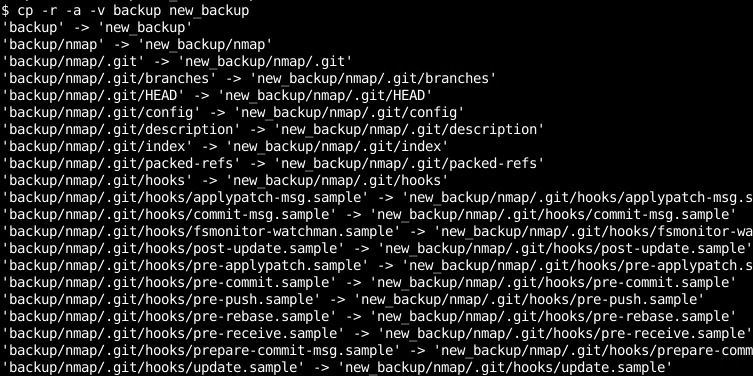
将整个目录复制到当前用户的主目录(Copy Entire Directory To The Current User Home Directory)
Linux bash shell provides some shortcuts about the paths. If we want to copy a directory completely into the current user home directory we can ~ tilde to specify the user home directory path. In this example, we will copy the directory named backup to the current user home directory.
Linux bash shell提供了一些有关路径的快捷方式。 如果要将目录完全复制到当前用户主目录中,可以~波浪号指定用户主目录路径。 在此示例中,我们将名为backup的目录复制到当前用户主目录。
$ cp -r backup ~/复制详细Providig详细信息 (Copy Verbosely Providig Detailed Information)
During copy operation, there will be no sign about the current operation. We can make this copy operation verbose where copied files will be printed to the shell. We will use -v command like below.
在复制操作期间,不会有任何有关当前操作的迹象。 我们可以使此复制操作变得冗长,将复制的文件打印到外壳上。 我们将使用-v命令,如下所示。
$ cp -r -v newbackup oldbackup
使用rsync命令复制整个目录(Copy Entire Directory with rsync Command)
rsync is very popular and useful tools used to copy, sync, and backup files and directories. We can use rsync in order to copy the complete directory with its subdirectories locally or to the remote systems. We will use -r options to copy all directories and files recursively and also use -v option for verbose output.
rsync是非常流行且有用的工具,用于复制,同步和备份文件和目录。 我们可以使用rsync来将完整的目录及其子目录复制到本地或远程系统。 我们将使用-r选项以递归方式复制所有目录和文件,还将使用-v选项进行详细输出。
$ rsync -r -v backup backup_old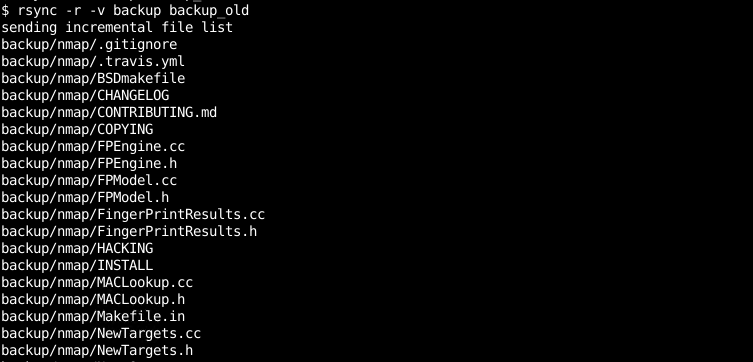
linux复制整个目录

魔乐社区(Modelers.cn) 是一个中立、公益的人工智能社区,提供人工智能工具、模型、数据的托管、展示与应用协同服务,为人工智能开发及爱好者搭建开放的学习交流平台。社区通过理事会方式运作,由全产业链共同建设、共同运营、共同享有,推动国产AI生态繁荣发展。
更多推荐


 0
0 0
0- 0


 已为社区贡献10条内容

所有评论(0)