macos linux_如何在Linux或macOS上清除终端历史记录

macos linux

Press the “up” arrow in the Mac or Linux command line and you’ll see the last command you ran. Keep pressing “up” and you’ll see more commands; you can go back days, months, or even years.
在Mac或Linux命令行中按“向上”箭头,您将看到运行的最后一个命令。 继续按“上”,您将看到更多命令; 您可以回去几天,几个月甚至几年。
This is called your history, and it’s very convenient. If you made a mistake typing a long command, simply press “up” and fix the problem. If you want to re-connect to an SSH server you used the other day, simply press “up” until you see the relevant command.
这称为您的历史记录,非常方便。 如果您在输入长命令时输入错误,只需按“向上”并解决问题。 如果要重新连接到前一天使用的SSH服务器,只需按“向上”,直到看到相关命令。
It’s useful, but there’s also a potential security problem here, particularly if you accidentally typed a password in plain text at some point. How does one clear this history? Long story short, you can do so with two commands: history -c, followed by rm ~/.bash_history. Here’s what those commands do, for greater clarity.
这很有用,但是这里还存在潜在的安全问题,尤其是如果您在某个时候不小心以纯文本形式输入密码的情况下。 如何清除这个历史? 简而言之,您可以使用以下两个命令来执行此操作: history -c ,后跟rm ~/.bash_history 。 这些命令的作用如下,以更加清楚。
清除当前会话的历史记录 (Clear the Current Session’s History)
Your history can be broke down into two chunks. There’s your current sessions’ history, and there’s your long-term history. Our first command, history -c, deals with the current session.
您的历史可以分为两个部分。 有您当前会话的历史记录,也有您的长期历史记录。 我们的第一个命令history -c处理当前会话。
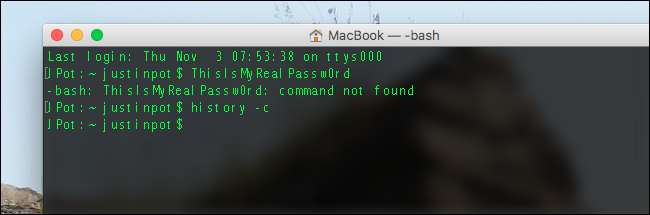
The history command is built into Bash itself, and the -c modifier tells the program to clear that history. This command will prevent anything in your current session from being written to your long-term history, but does not clear out that long-term history.
Bash本身内置了history命令,并且-c修饰符告诉程序清除该历史记录。 此命令将防止当前会话中的任何内容写入您的长期历史记录,但不会清除该长期历史记录。
清除所有Bash历史记录 (Clear All of Your Bash History)
If you want to remove the entirety of your history, run the following command:
如果要删除整个历史记录,请运行以下命令:
rm ~/.bash_history
rm ~/.bash_history
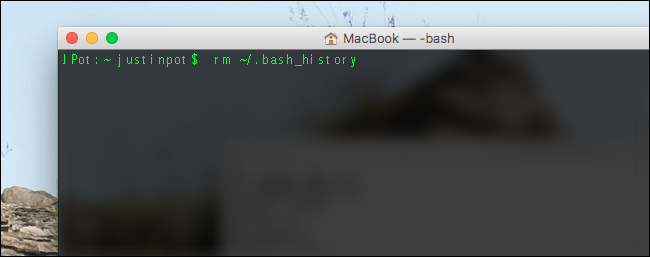
If you don’t know, rm is a longstanding command for deleting files in UNIX-based systems. ~/.bash_history is a simple text document, which stores you Bash history.
如果您不知道, rm是一个长期的命令,用于删除基于UNIX的系统中的文件。 ~/.bash_history是一个简单的文本文档,用于存储Bash历史记录。
Alternatively, you could open the file and delete any lines you’re concerned about. On a Mac, type open ~/.bash_history and your default text editor will open the file.
或者,您可以打开文件并删除您关注的所有行。 在Mac上,输入open ~/.bash_history ,默认的文本编辑器将打开该文件。
On Linux systems, replace open with the name of your preferred text editor, such as nano, vim, or gedit. One you’ve opened the file, you can delete any lines you’d rather not keep by hand. Save the file, then restart your shell, and the lines you’ve deleted will stop showing up.
在Linux系统上,将open替换为首选文本编辑器的名称,例如nano , vim或gedit 。 打开文件后,您可以删除不想手工保留的任何行。 保存文件,然后重新启动Shell,已删除的行将停止显示。
清除终端以进行新会话 (Clear Your Terminal for a Like-New Session)
This one is mostly unrelated, but I’m mentioning it anyway. The command clear makes your Terminal look like you just opened a new session, which is useful if you take a lot of screenshots and want things to look tidy (or don’t want people over your shoulder to see what commands you’ve been running.)
这大部分是无关的,但无论如何我都在提及它。 clear命令可使您的终端看起来就像您刚刚打开了一个新会话,如果您截取了很多屏幕截图并希望使事情看起来整洁(或者不希望其他人看到您正在运行的命令),这将非常有用)
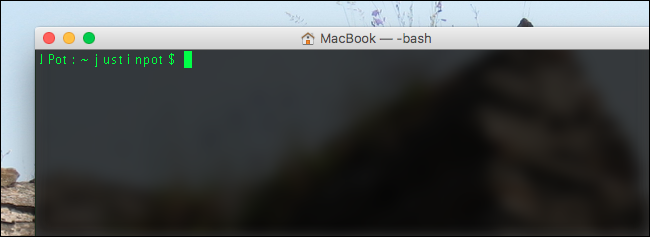
This is entirely aesthetic: scroll up and you’ll still see your previous output. But if you’re in my line of work, it comes in handy.
这完全是美观的:向上滚动,您仍然会看到以前的输出。 但是,如果您在我的工作范围内,它会派上用场。
翻译自: https://www.howtogeek.com/179022/how-to-clear-the-terminal-history-on-linux-or-mac-os-x/
macos linux

魔乐社区(Modelers.cn) 是一个中立、公益的人工智能社区,提供人工智能工具、模型、数据的托管、展示与应用协同服务,为人工智能开发及爱好者搭建开放的学习交流平台。社区通过理事会方式运作,由全产业链共同建设、共同运营、共同享有,推动国产AI生态繁荣发展。
更多推荐


 0
0 0
0- 0


 已为社区贡献4条内容

所有评论(0)