vue3实现markdown文档编辑器、转html、样式切换、导出图片、复制内容到微信公众号等功能
·
实现代码
<template>
<div class="markdown-editor">
<div class="editor-container">
<!-- Markdown 输入区域 -->
<div class="markdown-input" v-show="!isPreviewMode && isMarkdown">
<el-card class="editor-card">
<template #header>
<div class="header">
<div class="toolbar">
<!-- 导出文件 -->
<el-button-group>
<el-button size="small" @click="exportFile" title="导出文件">
<el-icon>
<Download />
</el-icon>
</el-button>
</el-button-group>
<!-- 格式化工具 -->
<el-button-group>
<el-button size="small" @click="insertMarkdown('heading')" title="标题">
<strong>H</strong>
</el-button>
<el-button size="small" @click="insertMarkdown('bold')" title="加粗">
<strong>B</strong>
</el-button>
<el-button size="small" @click="insertMarkdown('italic')" title="斜体">
<em>I</em>
</el-button>
<el-button size="small" @click="insertMarkdown('quote')" title="引用">
<el-icon>
<ChatLineSquare />
</el-icon>
</el-button>
<el-button size="small" @click="insertMarkdown('code')" title="代码">
<el-icon>
<Notebook />
</el-icon>
</el-button>
<el-button size="small" @click="insertMarkdown('link')" title="链接">
<el-icon>
<Link />
</el-icon>
</el-button>
<el-button size="small" @click="insertMarkdown('image')" title="图片">
<el-icon>
<Picture />
</el-icon>
</el-button>
<el-button size="small" @click="insertMarkdown('list')" title="列表">
<el-icon>
<List />
</el-icon>
</el-button>
</el-button-group>
<!-- 切换到HTML -->
<el-button-group>
<el-button size="small" @click="toggleToHtml" title="切换到HTML">
<el-icon>
<Document />
</el-icon>
切换到HTML
</el-button>
</el-button-group>
<!-- 预览控制 -->
<el-button-group>
<el-button size="small" @click="togglePreview" title="预览模式" :type="isPreviewMode ? 'primary' : ''"
class="preview-button">
<el-icon>
<View />
</el-icon>
预览
</el-button>
</el-button-group>
</div>
</div>
</template>
<el-input v-model="markdownContent" type="textarea" :rows="20" placeholder="请输入 Markdown 内容..."
@input="handleContentChange" />
</el-card>
</div>
<!-- HTML 输入区域 -->
<div class="markdown-input" v-show="!isPreviewMode && !isMarkdown">
<el-card class="editor-card">
<template #header>
<div class="header">
<span>HTML 输入区域</span>
<div class="toolbar">
<!-- 切换到Markdown -->
<el-button-group>
<el-button size="small" @click="toggleToMarkdown" title="切换到Markdown">
<el-icon>
<Notebook />
</el-icon>
切换到Markdown
</el-button>
</el-button-group>
<!-- 预览控制 -->
<el-button-group>
<el-button size="small" @click="togglePreview" title="预览模式" :type="isPreviewMode ? 'primary' : ''"
class="preview-button">
<el-icon>
<View />
</el-icon>
预览
</el-button>
</el-button-group>
</div>
</div>
</template>
<el-input v-model="htmlContent" type="textarea" :rows="20" placeholder="请输入 HTML 内容..."
@input="handleHtmlChange" />
</el-card>
</div>
<!-- HTML 预览区域 -->
<div class="preview-container">
<el-card class="preview-card">
<template #header>
<div class="header">
<span v-show="!isPreviewMode">HTML 预览</span>
<el-button v-show="isPreviewMode" size="small" @click="togglePreview" title="退出预览"
class="preview-exit-button">
<!-- <el-icon>
<Close />
</el-icon> -->
退出预览
</el-button>
<div style="display: flex; gap: 10px;align-items: center;">
<el-select v-model="currentStyle" size="small" placeholder="选择样式" @change="setStyle"
style="width: 120px;margin-right: 10px;">
<el-option label="样式1" value="style1"></el-option>
<el-option label="样式2" value="style2"></el-option>
</el-select>
<!-- 复制到公众号 -->
<el-button size="small" @click="copyToWechat" title="复制到公众号">
<el-icon>
<Document />
</el-icon>
复制到公众号
</el-button>
<!-- 导出为图片 -->
<el-button size="small" @click="exportAsImage" title="导出为图片">
<el-icon>
<Picture />
</el-icon>
导出为图片
</el-button>
</div>
</div>
</template>
<div class="preview-content">
<div class="card" ref="card">
<div class="card-header">
</div>
<div class="card-content">
<div class="card-content-inner" v-html="htmlContent"></div>
</div>
<div class="card-footer"></div>
</div>
</div>
</el-card>
</div>
</div>
</div>
</template>
<script setup lang="ts">
import { ref, onMounted, reactive } from 'vue'
import { marked } from 'marked'
import { ElMessage } from 'element-plus'
import html2canvas from 'html2canvas'
// 使用 ESM 版本的 html2canvas
// import html2canvas from 'html2canvas/dist/html2canvas.esm.js'
import {
Download, ChatLineSquare, Notebook, Link,
Picture, List, View, FullScreen, Document, Close
} from '@element-plus/icons-vue'
// 编辑器状态
const markdownContent = ref('')
const currentStyle = ref('style1') // 默认选择样式1
const htmlContent = ref('')
const textareaRef = ref<HTMLTextAreaElement | null>(null)
const isPreviewMode = ref(false)
const isMarkdown = ref(true) // 默认显示 Markdown 编辑器
const card = ref<HTMLElement | null>(null) // 添加对预览区域的引用,并指定正确的类型
// 编辑历史
const history = reactive({
past: [] as string[],
future: [] as string[]
})
// 文件操作函数
const exportFile = () => {
const blob = new Blob([markdownContent.value], { type: 'text/markdown' })
const url = URL.createObjectURL(blob)
const a = document.createElement('a')
a.href = url
a.download = 'markdown.md'
a.click()
URL.revokeObjectURL(url)
}
// 编辑历史操作
const saveHistory = () => {
history.past.push(markdownContent.value)
history.future = []
if (history.past.length > 50) {
history.past.shift()
}
}
// 预览控制
const togglePreview = () => {
isPreviewMode.value = !isPreviewMode.value
}
// 切换到Markdown模式
const toggleToMarkdown = () => {
isMarkdown.value = true
}
let cssData1 = `
.card {
max-width: 420px;
background: #ffffff;
border-radius: 16px;
overflow: hidden;
box-shadow: 0 4px 24px rgba(0, 0, 0, 0.06);
font-family: 'PingFang SC', -apple-system, BlinkMacSystemFont, 'Segoe UI', Roboto, 'Helvetica Neue', sans-serif;
line-height: 1.65;
color: #333;
margin: 24px auto;
transition: all 0.3s ease;
}
.card:hover {
transform: translateY(-4px);
box-shadow: 0 8px 32px rgba(0, 0, 0, 0.1);
}
.card-header {
background: #ff2442;
height: 6px;
border-radius: 16px 16px 0 0;
}
.card-content {
padding: 32px;
}
.card-content-inner {
padding: 0;
}
.card-content-inner > *:first-child {
margin-top: 0;
}
.card-content-inner > *:last-child {
margin-bottom: 0;
}
.card-content-inner h1 {
font-size: 24px;
font-weight: 700;
margin: 0 0 24px;
color: #1a1a1a;
letter-spacing: -0.2px;
line-height: 1.4;
position: relative;
padding-bottom: 16px;
}
.card-content-inner h1:after {
content: "";
position: absolute;
bottom: 0;
left: 0;
width: 36px;
height: 3px;
background: #ff2442;
border-radius: 2px;
}
.card-content-inner h2 {
font-size: 20px;
font-weight: 600;
margin: 32px 0 20px;
color: #2c2c2c;
padding-bottom: 8px;
border-bottom: 1px solid #f5f5f5;
}
.card-content-inner p {
font-size: 16px;
margin: 0 0 24px;
color: #444;
text-align: justify;
hyphens: auto;
}
.card-content-inner ol,
.card-content-inner ul {
padding-left: 24px;
margin: 0 0 24px;
}
.card-content-inner ol li,
.card-content-inner ul li {
margin-bottom: 12px;
padding-left: 8px;
}
.card-content-inner ol li {
position: relative;
counter-increment: list-counter;
}
.card-content-inner ol li::before {
content: counter(list-counter);
position: absolute;
left: -26px;
top: 2px;
width: 20px;
height: 20px;
background: #ffebee;
color: #ff2442;
border-radius: 50%;
display: flex;
align-items: center;
justify-content: center;
font-size: 12px;
font-weight: 600;
}
.card-content-inner ul li::before {
content: "•";
color: #ff2442;
font-weight: bold;
display: inline-block;
width: 1em;
margin-left: -1em;
}
.card-content-inner strong {
color: #ff2442;
font-weight: 600;
}
.card-content-inner a {
color: #ff2442;
text-decoration: none;
border-bottom: 1px solid rgba(255, 36, 66, 0.3);
transition: all 0.2s ease;
}
.card-content-inner a:hover {
color: #e01e3c;
border-bottom-color: #e01e3c;
}
.card-content-inner code {
background: #fff0f2;
padding: 2px 6px;
border-radius: 4px;
font-family: 'SFMono-Regular', Consolas, 'Liberation Mono', Menlo, monospace;
font-size: 14px;
color: #ff2442;
}
.card-content-inner pre {
background: #fffafb;
padding: 18px;
border-radius: 8px;
overflow-x: auto;
margin: 0 0 24px;
font-size: 14px;
line-height: 1.5;
border-left: 3px solid #ff2442;
}
.card-content-inner pre code {
background: none;
padding: 0;
color: #444;
font-size: 14px;
}
.card-content-inner blockquote {
border-left: 3px solid #ffcdd2;
padding: 4px 20px 4px 20px;
margin: 0 0 24px;
color: #666;
background: #fffafa;
border-radius: 0 8px 8px 0;
font-style: italic;
}
.card-content-inner hr {
border: 0;
height: 1px;
background: linear-gradient(to right, rgba(255, 36, 66, 0.1), transparent);
margin: 32px 0;
}
.card-footer {
padding: 16px 32px;
background: #fffafa;
border-top: 1px solid #f9f0f0;
color: #999;
font-size: 13px;
display: flex;
justify-content: space-between;
}
/* 小红书特色元素 */
.card-content-inner h1 + p {
font-size: 17px;
color: #666;
margin-top: -8px;
margin-bottom: 28px;
}
.card-content-inner img {
max-width: 100%;
border-radius: 12px;
margin: 24px 0;
display: block;
box-shadow: 0 4px 12px rgba(0, 0, 0, 0.05);
}
/* 留白增强 */
.card-content-inner p + h2 {
margin-top: 36px;
}
.card-content-inner ul + h2,
.card-content-inner ol + h2 {
margin-top: 40px;
}
`
let cssData2 = `
.card {
max-width: 680px;
background: #ffffff;
border-radius: 12px;
overflow: hidden;
box-shadow: 0 8px 30px rgba(0, 0, 0, 0.06);
font-family: 'Inter', -apple-system, BlinkMacSystemFont, 'Segoe UI', Roboto, Oxygen, sans-serif;
line-height: 1.7;
color: #333;
margin: 40px auto;
transition: transform 0.3s ease;
}
.card:hover {
transform: translateY(-3px);
}
.card-header {
background: linear-gradient(135deg, #6e8efb, #a777e3);
height: 6px;
border-radius: 12px 12px 0 0;
}
.card-content {
padding: 40px;
}
.card-content-inner {
padding: 0;
}
.card-content-inner > *:first-child {
margin-top: 0;
}
.card-content-inner > *:last-child {
margin-bottom: 0;
}
.card-content-inner h1 {
font-size: 28px;
font-weight: 700;
margin: 0 0 30px;
color: #1a1a1a;
letter-spacing: -0.01em;
line-height: 1.3;
}
.card-content-inner h2 {
font-size: 22px;
font-weight: 600;
margin: 40px 0 20px;
color: #2c2c2c;
padding-bottom: 8px;
border-bottom: 1px solid #f0f0f0;
}
.card-content-inner h3 {
font-size: 18px;
font-weight: 600;
margin: 35px 0 15px;
color: #3a3a3a;
}
.card-content-inner p {
font-size: 17px;
margin: 0 0 28px;
color: #444;
text-align: justify;
hyphens: auto;
}
.card-content-inner ol,
.card-content-inner ul {
padding-left: 24px;
margin: 0 0 28px;
}
.card-content-inner ol li,
.card-content-inner ul li {
margin-bottom: 12px;
padding-left: 12px;
}
.card-content-inner ol li {
position: relative;
counter-increment: list-counter;
}
.card-content-inner ol li::before {
content: counter(list-counter);
position: absolute;
left: -24px;
top: 0;
width: 24px;
height: 24px;
background: #f5f7ff;
color: #6e8efb;
border-radius: 50%;
display: flex;
align-items: center;
justify-content: center;
font-size: 13px;
font-weight: 500;
}
.card-content-inner ul li::before {
content: "•";
color: #a777e3;
font-weight: bold;
display: inline-block;
width: 1em;
margin-left: -1em;
}
.card-content-inner strong {
color: #2c2c2c;
font-weight: 600;
}
.card-content-inner em {
font-style: italic;
color: #555;
}
.card-content-inner a {
color: #6e8efb;
text-decoration: none;
border-bottom: 1px solid rgba(110, 142, 251, 0.3);
transition: all 0.2s ease;
}
.card-content-inner a:hover {
color: #a777e3;
border-bottom-color: #a777e3;
}
.card-content-inner code {
background: #f8f9ff;
padding: 3px 6px;
border-radius: 4px;
font-family: 'SFMono-Regular', Consolas, 'Liberation Mono', Menlo, monospace;
font-size: 15px;
color: #6e8efb;
}
.card-content-inner pre {
background: #f8f9ff;
padding: 20px;
border-radius: 8px;
overflow-x: auto;
margin: 0 0 30px;
font-size: 15px;
line-height: 1.5;
border-left: 3px solid #a777e3;
}
.card-content-inner pre code {
background: none;
padding: 0;
color: #444;
font-size: 15px;
}
.card-content-inner blockquote {
border-left: 3px solid #e0e0e0;
padding: 4px 20px 4px 24px;
margin: 0 0 30px;
color: #555;
font-style: italic;
background: #fafbff;
border-radius: 0 8px 8px 0;
}
.card-content-inner hr {
border: 0;
height: 1px;
background: #f0f0f0;
margin: 40px 0;
}
.card-footer {
padding: 20px 40px;
background: #fafbff;
border-top: 1px solid #f0f0f0;
color: #777;
font-size: 14px;
display: flex;
justify-content: space-between;
}
/* 留白增强 */
.card-content-inner p + h2,
.card-content-inner ul + h2,
.card-content-inner ol + h2 {
margin-top: 50px;
}
.card-content-inner p + h3 {
margin-top: 40px;
}
.card-content-inner img {
max-width: 100%;
border-radius: 8px;
margin: 30px 0;
display: block;
}
`
const setStyle = () => {
// 移除所有旧的样式标签
const oldStyles = document.querySelectorAll('style[data-md-style]')
oldStyles.forEach(style => style.remove())
// 创建新的样式标签
const styleTag = document.createElement('style')
styleTag.type = 'text/css'
styleTag.setAttribute('data-md-style', 'true') // 添加标识,方便后续删除
// 根据选择的样式设置内容
styleTag.innerHTML = currentStyle.value === 'style1' ? cssData1 : cssData2
// 插入到页面头部
document.head.appendChild(styleTag)
}
// 配置marked选项
marked.setOptions({
breaks: true, // 将回车转换为 <br>
gfm: true, // 启用 GitHub 风格的 Markdown
// sanitize: false, // 允许HTML标签
})
// 使用marked进行Markdown转HTML
const convertMarkdownToHtml = (markdown: string): any => {
return marked(markdown)
}
// 处理 Markdown 内容变化
const handleContentChange = () => {
saveHistory()
if (isMarkdown.value) {
updatePreview()
}
}
// 处理 HTML 内容变化
const handleHtmlChange = () => {
// HTML 编辑器内容变化时不需要转换,直接保存历史
saveHistory()
}
// 更新预览
const updatePreview = () => {
if (isMarkdown.value) {
htmlContent.value = convertMarkdownToHtml(markdownContent.value)
}
}
// 切换到 HTML 模式时的处理
const toggleToHtml = () => {
isMarkdown.value = false
// 如果 HTML 内容为空,则使用当前 Markdown 转换的结果
if (!htmlContent.value.trim()) {
htmlContent.value = convertMarkdownToHtml(markdownContent.value)
}
}
// 在光标位置插入Markdown语法
const insertMarkdown = (type: string) => {
const textarea = document.querySelector('.el-textarea__inner') as HTMLTextAreaElement
if (!textarea) return
const start = textarea.selectionStart
const end = textarea.selectionEnd
const selected = markdownContent.value.substring(start, end)
let insertion = ''
switch (type) {
case 'bold':
insertion = `**${selected || '粗体文本'}**`
break
case 'italic':
insertion = `*${selected || '斜体文本'}*`
break
case 'heading':
insertion = `\n## ${selected || '标题'}\n`
break
case 'link':
insertion = `[${selected || '链接文本'}](https://example.com)`
break
case 'list':
insertion = `\n1. ${selected || '列表项'}\n2. 列表项\n3. 列表项\n`
break
case 'quote':
insertion = `\n> ${selected || '引用文本'}\n`
break
case 'code':
insertion = selected ?
`\`\`\`\n${selected}\n\`\`\`` :
`\`\`\`\n代码块\n\`\`\``
break
case 'image':
insertion = ``
break
default:
return
}
const newContent =
markdownContent.value.substring(0, start) +
insertion +
markdownContent.value.substring(end)
markdownContent.value = newContent
// 保存历史记录
saveHistory()
// 更新预览
updatePreview()
// 聚焦回文本区域
setTimeout(() => {
textarea.focus()
const newCursorPos = start + insertion.length
textarea.setSelectionRange(newCursorPos, newCursorPos)
}, 0)
}
// 复制HTML到剪贴板
const copyHtml = () => {
navigator.clipboard.writeText(htmlContent.value)
.then(() => {
ElMessage({
message: 'HTML已复制到剪贴板',
type: 'success',
duration: 2000
})
})
.catch(err => {
ElMessage({
message: '复制失败: ' + err,
type: 'error',
duration: 2000
})
})
}
// 导出为图片
const exportAsImage = async () => {
try {
// 显示加载提示
ElMessage({
message: '正在生成图片,请稍候...',
type: 'info',
duration: 0,
showClose: true
})
// 等待一小段时间确保DOM已完全渲染
await new Promise(resolve => setTimeout(resolve, 100))
const element = card.value
if (!element) {
ElMessage.error('获取预览内容失败')
return
}
console.log('开始导出图片,元素:', element)
// 确保样式已应用
const styleTag = document.querySelector('style[data-md-style]')
if (!styleTag) {
setStyle() // 如果没有样式,先应用样式
// 再等待一小段时间确保样式已应用
await new Promise(resolve => setTimeout(resolve, 100))
}
// 创建一个临时容器,用于克隆和渲染
const tempContainer = document.createElement('div')
tempContainer.style.position = 'absolute'
tempContainer.style.left = '-9999px'
tempContainer.style.top = '0'
tempContainer.style.width = `${element.offsetWidth}px`
tempContainer.style.height = `${element.offsetHeight}px`
// 克隆元素
const clone = element.cloneNode(true) as HTMLElement
tempContainer.appendChild(clone)
document.body.appendChild(tempContainer)
// 创建canvas,添加更多配置选项
const canvas = await html2canvas(clone, {
scale: 2, // 提高图片质量
useCORS: true, // 允许加载跨域图片
allowTaint: true, // 允许加载跨域图片(即使可能污染画布)
backgroundColor: '#ffffff', // 设置背景色
logging: true, // 开启日志以便调试
foreignObjectRendering: false, // 禁用foreignObject渲染,提高兼容性
removeContainer: true, // 移除临时创建的容器
onclone: (clonedDoc) => {
// 确保克隆的文档中包含所有必要的样式
const styles = document.querySelectorAll('style[data-md-style]')
styles.forEach(style => {
clonedDoc.head.appendChild(style.cloneNode(true))
})
console.log('文档已克隆,添加了样式')
}
})
// 清理临时容器
document.body.removeChild(tempContainer)
console.log('Canvas创建成功:', canvas)
// 关闭加载提示
ElMessage.closeAll()
// 转换为图片并下载
const link = document.createElement('a')
link.download = 'markdown-card.png'
link.href = canvas.toDataURL('image/png', 1.0)
document.body.appendChild(link) // 添加到DOM以确保在某些浏览器中正常工作
link.click()
document.body.removeChild(link) // 清理DOM
ElMessage.success('图片导出成功')
} catch (error:any) {
// 关闭加载提示
ElMessage.closeAll()
console.error('Export failed:', error)
ElMessage.error(`图片导出失败: ${error.message}`)
}
}
// 解析样式表中的伪元素样式
const parsePseudoElementStyles = () => {
const pseudoStyles: { [selector: string]: { [property: string]: string } } = {}
// 遍历所有样式表
for (let i = 0; i < document.styleSheets.length; i++) {
try {
const styleSheet = document.styleSheets[i]
// 跳过跨域样式表
if (!styleSheet.cssRules) continue
// 遍历所有CSS规则
for (let j = 0; j < styleSheet.cssRules.length; j++) {
const rule = styleSheet.cssRules[j]
if (rule instanceof CSSStyleRule) {
// 检查是否包含::before或::after伪元素
if (rule.selectorText.includes('::before') || rule.selectorText.includes('::after')) {
const selector = rule.selectorText
const pseudoType = selector.includes('::before') ? '::before' : '::after'
// 提取基本选择器(去掉伪元素部分)
const baseSelector = selector.split(pseudoType)[0].trim()
// 存储伪元素样式
if (!pseudoStyles[selector]) {
pseudoStyles[selector] = {}
}
// 提取样式属性
for (let k = 0; k < rule.style.length; k++) {
const property = rule.style[k]
const value = rule.style.getPropertyValue(property)
pseudoStyles[selector][property] = value
}
// 特别处理content属性
const content = rule.style.getPropertyValue('content')
if (content) {
// 去掉引号
pseudoStyles[selector]['content'] = content.replace(/^["']|["']$/g, '')
}
}
}
}
} catch (e) {
// 忽略跨域错误
console.warn('无法访问样式表:', e)
}
}
return pseudoStyles
}
// 处理CSS计数器函数
const processCounterFunction = (content: string, element: Element, index: number): string => {
// 检查是否包含counter函数
if (content.includes('counter(')) {
// 处理有序列表的计数器
if (element.parentElement?.tagName === 'OL') {
// 获取列表项的索引(从1开始)
const listIndex = index + 1
// 替换counter函数为实际数字
return listIndex.toString()
}
}
return content
}
// 将伪元素转换为实际DOM元素
const convertPseudoElementsToDOM = (element: HTMLElement, pseudoStyles: { [selector: string]: { [property: string]: string } }) => {
// 处理所有伪元素选择器
Object.keys(pseudoStyles).forEach(selector => {
const pseudoType = selector.includes('::before') ? '::before' : '::after'
try {
// 处理可能包含逗号的复杂选择器
const selectorParts = selector.split(',').map(part => part.trim())
selectorParts.forEach(part => {
if (part.includes(pseudoType)) {
// 提取基本选择器(去掉伪元素部分)
const baseSelector = part.split(pseudoType)[0].trim()
// 跳过通用选择器和无效选择器
if (baseSelector === '*' || !baseSelector) {
return
}
try {
// 查找匹配的元素
const matchingElements = element.querySelectorAll(baseSelector)
matchingElements.forEach((el, index) => {
// 创建伪元素的实际DOM表示
const pseudoElement = document.createElement('span')
pseudoElement.className = `pseudo-element-${pseudoType.replace('::', '')}`
// 应用样式
const styles = pseudoStyles[selector]
Object.keys(styles).forEach(property => {
if (property !== 'content') {
(pseudoElement.style as any)[property] = styles[property]
}
})
// 设置内容
if (styles['content'] && styles['content'] !== 'none') {
// 处理特殊的content值,如counter()函数
let contentValue = styles['content']
// 处理counter函数
if (contentValue.includes('counter(')) {
contentValue = processCounterFunction(contentValue, el, index)
}
pseudoElement.textContent = contentValue
}
// 插入到正确的位置
if (pseudoType === '::before') {
el.insertBefore(pseudoElement, el.firstChild)
} else {
el.appendChild(pseudoElement)
}
})
} catch (e) {
console.warn(`无法处理基本选择器 ${baseSelector}:`, e)
}
}
})
} catch (e) {
console.warn(`无法处理选择器 ${selector}:`, e)
}
})
}
// 复制到公众号
const copyToWechat = () => {
// 获取预览区域的内容
const previewContent = document.querySelector('.card-content-inner')
if (!previewContent) {
ElMessage.error('获取预览内容失败')
return
}
try {
// 创建一个临时div来存放富文本内容
const tempDiv = document.createElement('div')
// 克隆内容以便处理
const clonedContent = previewContent.cloneNode(true) as HTMLElement
// 解析当前页面中的伪元素样式
const pseudoStyles = parsePseudoElementStyles()
// 将伪元素转换为实际DOM元素
convertPseudoElementsToDOM(clonedContent, pseudoStyles)
// 获取当前应用的样式表内容
const styleTag:any = document.querySelector('style[data-md-style]')
const styleContent = styleTag ? styleTag.innerHTML : ''
// 创建包含样式和内容的HTML
tempDiv.innerHTML = `
<style>
${styleContent}
.card {
max-width: none !important;
width: 100% !important;
}
/* 隐藏原始的伪元素 */
[class^="pseudo-element-"] {
display: inline-block;
}
/* 隐藏原始的伪元素 */
*::before, *::after {
display: none !important;
}
</style>
<div class="card-content-inner">
${clonedContent.innerHTML}
</div>
`
// 应用必要的样式使元素不可见
tempDiv.style.position = 'fixed'
tempDiv.style.left = '-9999px'
tempDiv.style.top = '0'
tempDiv.style.opacity = '0'
document.body.appendChild(tempDiv)
// 创建选择范围
const range = document.createRange()
range.selectNode(tempDiv)
// 清除当前选择
window.getSelection()?.removeAllRanges()
// 添加新的选择范围
window.getSelection()?.addRange(range)
// 执行复制命令
const successful = document.execCommand('copy')
// 清理
window.getSelection()?.removeAllRanges()
document.body.removeChild(tempDiv)
if (successful) {
ElMessage.success('已复制到剪贴板,可直接粘贴到公众号')
} else {
throw new Error('复制命令执行失败')
}
} catch (error) {
console.error('Copy failed:', error)
ElMessage.error('复制失败,请重试')
}
}
// 组件挂载时初始化
onMounted(() => {
// 设置示例Markdown内容
markdownContent.value = `
# MD2Card
> MD2Card 是一个 markdown 转知识卡片工具,可以让你用 Markdown 制作优雅的图文海报。 🌟

## 它的主要功能:
1. 将 Markdown 转化为**知识卡片**
2. 多种主题风格任你选择
3. 长文自动拆分,或者根据 markdown --- 横线拆分
4. 可以复制图片到剪贴板,或者下载为PNG、SVG图片
5. 所见即所得
6. 免费
`
updatePreview()
// 初始化应用默认样式
setStyle()
})
</script>
<style scoped lang="scss">
.markdown-editor {
height: calc(100vh - 40px);
box-sizing: border-box;
}
.markdown-editor.fullscreen {
position: fixed;
top: 0;
left: 0;
right: 0;
bottom: 0;
z-index: 9999;
padding: 0;
background-color: #fff;
}
.editor-container {
height: 100%;
display: flex;
.markdown-input,
.preview-container {
flex: 1;
height: 100%;
overflow-y: auto;
}
.style-card {
width: 260px;
}
}
.editor-card,
.preview-card {
height: 100%;
position: relative;
transition: all 0.3s ease;
display: flex;
flex-direction: column;
.preview-content {
height: auto;
}
:deep(.el-card__body) {
flex: 1;
overflow: auto;
padding: 0;
display: flex;
flex-direction: column;
}
/* Editor card specific styles */
&.editor-card {
:deep(.el-textarea) {
flex: 1;
display: flex;
flex-direction: column;
.el-textarea__inner {
flex: 1;
resize: none;
border: none;
box-shadow: none;
padding: 20px;
}
}
}
/* Preview card specific styles */
&.preview-card {
height: 100%;
:deep(.el-card__body) {
// height: 100%;
// overflow: auto;
padding: 0;
display: flex;
flex-direction: column;
}
.card {
flex: 1;
min-height: 0;
/* 修复flex容器滚动问题 */
padding: 20px;
}
.card-content {
height: auto;
}
}
/* Style card specific styles */
&.style-card {
.style-content {
flex: 1;
overflow: auto;
padding: 10px;
.style-item {
padding: 8px 12px;
margin-bottom: 8px;
border: 1px solid #e0deed;
color: #0f0a29;
background: #fff;
border-radius: 4px;
cursor: pointer;
white-space: nowrap;
overflow: hidden;
text-overflow: ellipsis;
transition: all 0.2s ease;
&:hover {
border-color: #a598e5;
}
&.active {
border-color: #4c33cc;
color: #4c33cc;
background: #f6f5fc;
font-weight: 500;
}
}
}
}
}
.header {
display: flex;
justify-content: space-between;
align-items: center;
}
.toolbar {
display: flex;
gap: 10px;
}
/* 工具栏按钮组之间的分隔 */
.toolbar .el-button-group+.el-button-group {
margin-left: 8px;
padding-left: 8px;
border-left: 1px solid #dcdfe6;
}
/* 激活状态的按钮样式 */
:deep(.el-button--primary) {
background-color: var(--el-color-primary-light-3);
border-color: var(--el-color-primary-light-3);
color: #fff;
}
/* 预览模式下的布局调整 */
.preview-button {
z-index: 1000;
}
.preview-mode {
.header .preview-button {
display: none;
}
}
/* 预览按钮样式 */
.preview-button {
margin-right: 10px;
}
/* 预览模式下的退出按钮样式 */
.preview-exit-button {
/* position: absolute;
top: 10px;
left: 10px;
z-index: 2000; */
// box-shadow: 0 2px 12px 0 rgba(0, 0, 0, 0.1);
background-color: #fff;
color: var(--el-text-color-primary);
&:hover {
background-color: var(--el-color-primary-light-9);
}
}
/* 响应式布局 */
@media screen and (max-width: 768px) {
.toolbar {
flex-wrap: wrap;
}
.toolbar .el-button-group {
margin-bottom: 8px;
}
.header {
flex-direction: column;
align-items: flex-start;
gap: 10px;
}
}
</style>
页面效果
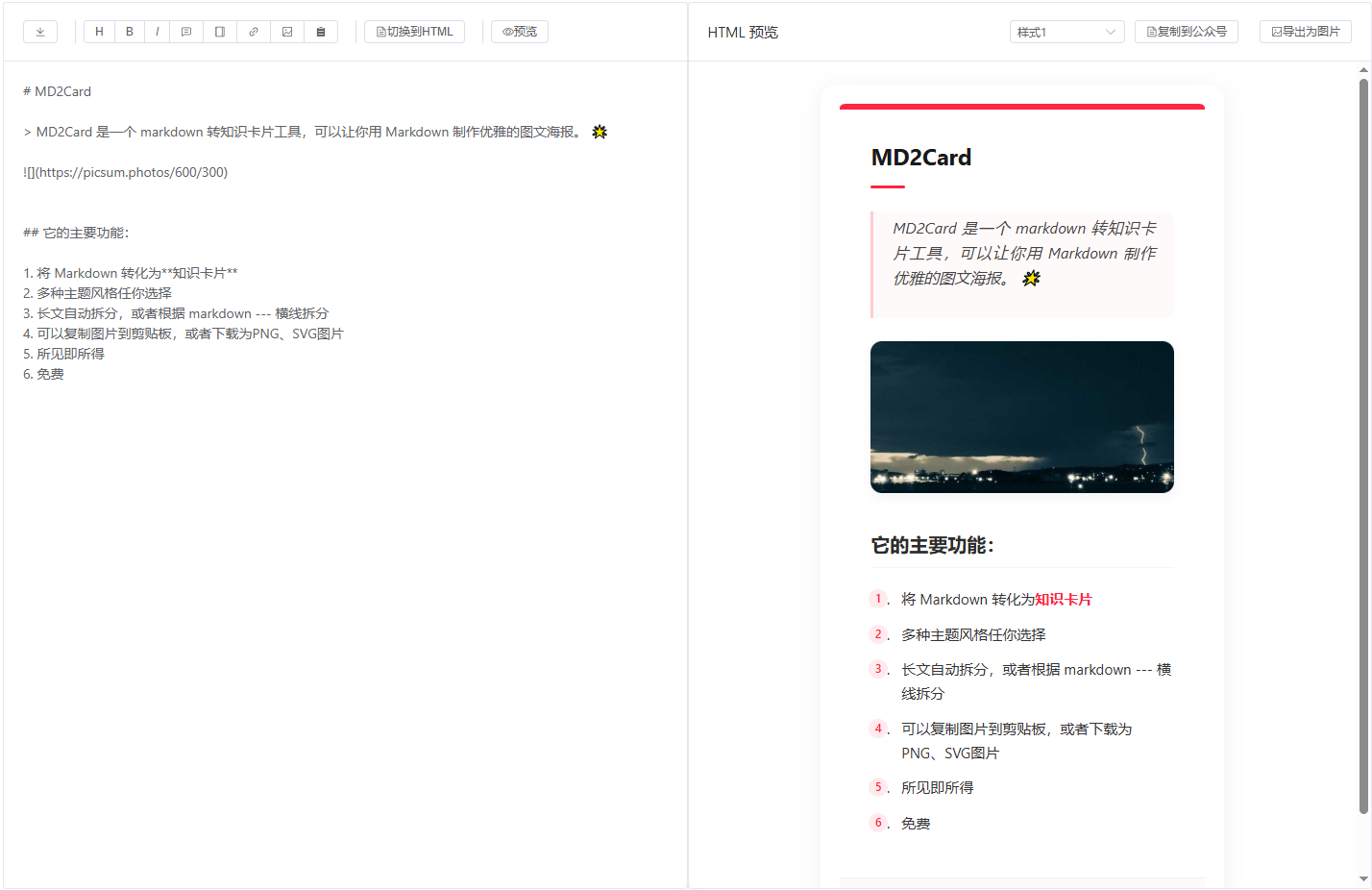
复制到公众号效果
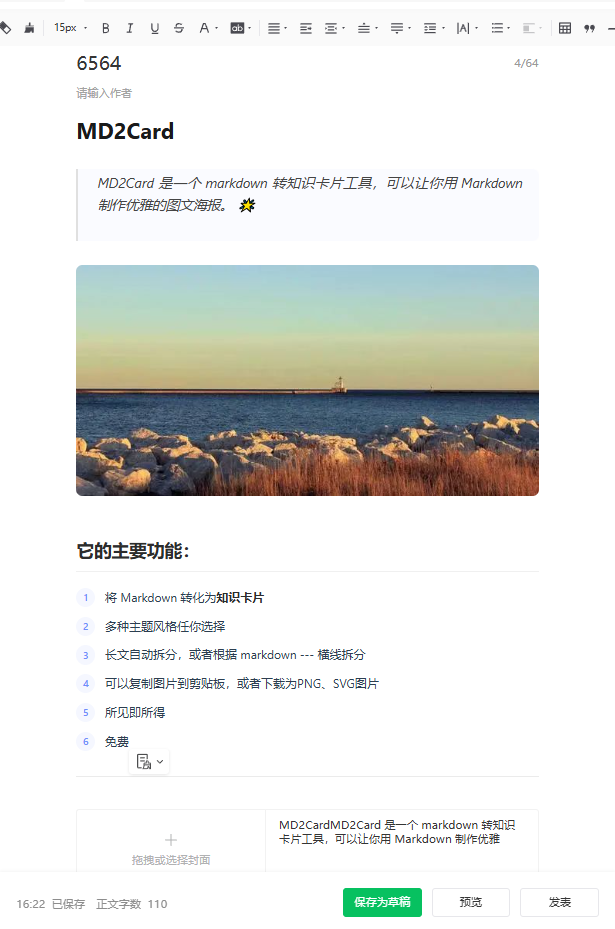
点击按钮,粘贴到微信公众号编辑器里,可看到html渲染的样式也带到了编辑器中。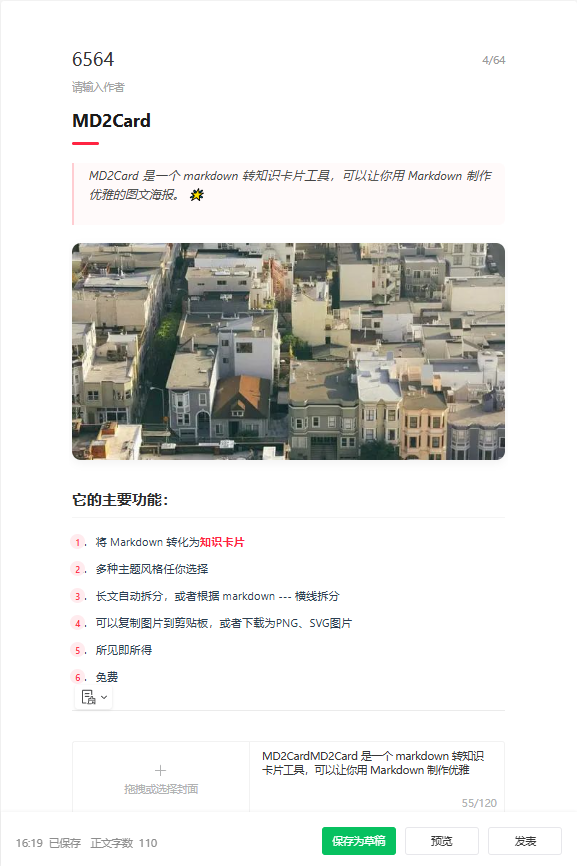
切换样式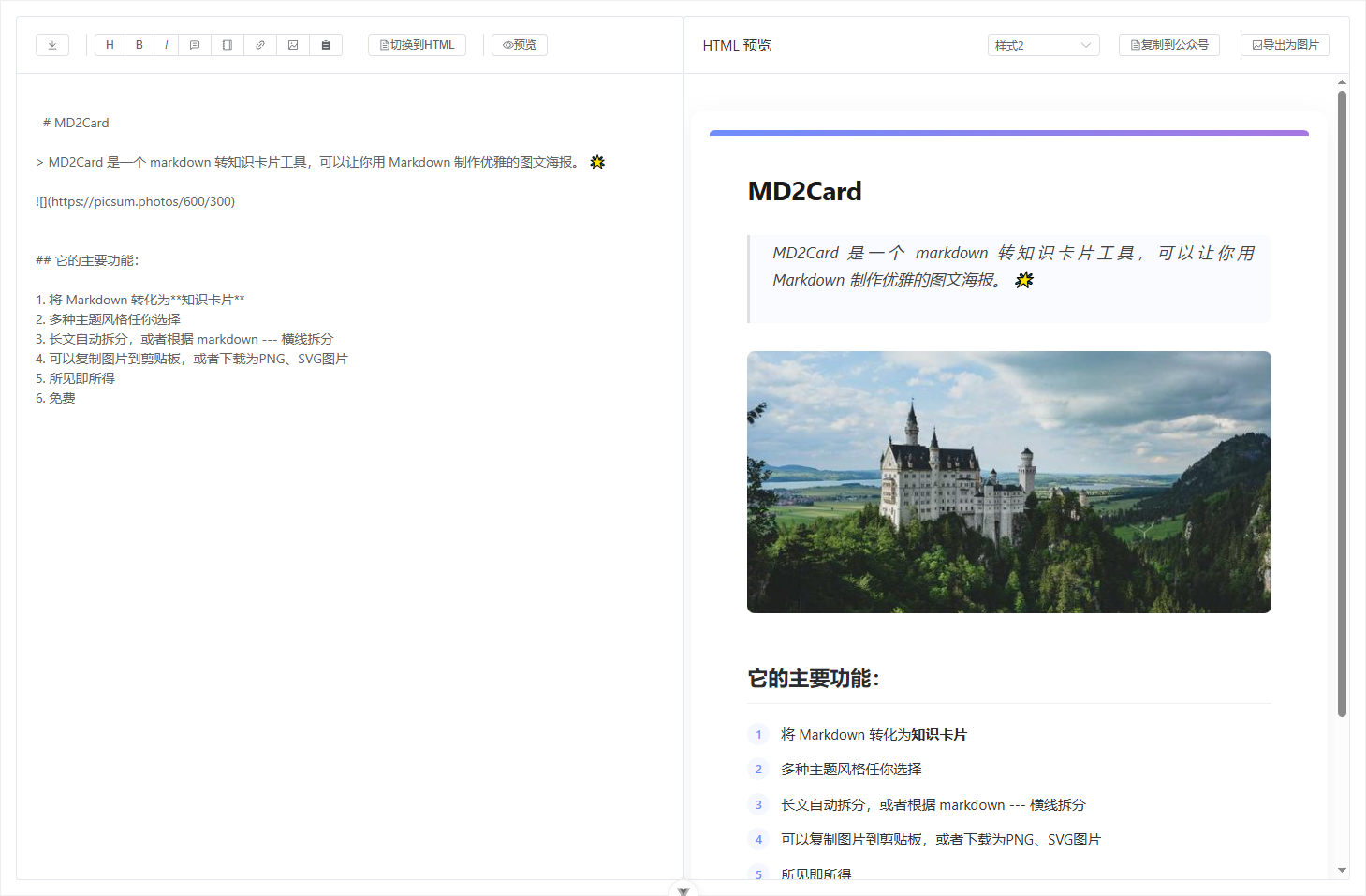
Markdown编辑器文档
主要功能
-
Markdown编辑:
- 支持标准Markdown语法
- 实时预览转换效果
- 工具栏快捷插入Markdown语法
-
HTML编辑:
- 支持切换到HTML编辑模式
- 可以直接编辑生成的HTML
-
预览功能:
- 实时预览渲染效果
- 支持全屏预览模式
- 多种主题样式切换
-
样式主题:
- 提供多套预设主题
- 支持自定义样式
- 主题实时切换预览
-
导出与复制:
- 导出 Markdown 文件
- 一键复制到公众号(保留样式)
- 导出为图片(支持高清PNG格式)
核心依赖包
-
marked:用于Markdown转HTML的核心库
npm install marked -
element-plus:UI组件库
npm install element-plus -
html2canvas:用于将DOM内容转换为图片
npm install html2canvas
技术实现
1. Markdown转换
- 使用marked库进行Markdown到HTML的转换
- 配置marked选项支持GFM和换行等特性
- 实时监听内容变化并更新预览
// 配置marked选项
marked.setOptions({
  breaks: true, // 将回车转换为 <br>
  gfm: true, // 启用 GitHub 风格的 Markdown
})

// 使用marked进行Markdown转HTML
const convertMarkdownToHtml = (markdown: string): any => {
  return marked(markdown)
}
2. 编辑器功能
- 支持工具栏快捷插入Markdown语法
- 实现撤销/重做功能
- 支持HTML/Markdown模式切换
// 在光标位置插入Markdown语法
const insertMarkdown = (type: string) => {
  const textarea = document.querySelector('.el-textarea__inner') as HTMLTextAreaElement
  if (!textarea) return

  const start = textarea.selectionStart
  const end = textarea.selectionEnd
  const selected = markdownContent.value.substring(start, end)

  let insertion = ''

  switch (type) {
    case 'bold':
      insertion = `**${selected || '粗体文本'}**`
      break
    // 其他类型...
  }

  // 更新内容和预览
}
3. 样式主题
- 使用动态样式注入实现主题切换
- 支持实时预览主题效果
- 提供预设主题配置
const setStyle = () => {
  // 移除所有旧的样式标签
  const oldStyles = document.querySelectorAll('style[data-md-style]')
  oldStyles.forEach(style => style.remove())

  // 创建新的样式标签
  const styleTag = document.createElement('style')
  styleTag.type = 'text/css'
  styleTag.setAttribute('data-md-style', 'true') // 添加标识,方便后续删除

  // 根据选择的样式设置内容
  styleTag.innerHTML = currentStyle.value === 'style1' ? cssData1 : cssData2

  // 插入到页面头部
  document.head.appendChild(styleTag)
}
4. 导出功能
- Markdown导出:
- 将编辑器内容导出为.md文件
- 使用Blob API实现文件下载
const exportFile = () => {
  const blob = new Blob([markdownContent.value], { type: 'text/markdown' })
  const url = URL.createObjectURL(blob)
  const a = document.createElement('a')
  a.href = url
  a.download = 'markdown.md'
  a.click()
  URL.revokeObjectURL(url)
}
- 复制到公众号:
- 保留样式的富文本复制
- 支持主流浏览器的剪贴板API
- 优化微信编辑器的兼容性
- 自适应宽度设计,适配公众号编辑器
const copyToWechat = () => {
  // 获取预览区域的内容
  const previewContent = document.querySelector('.card-content-inner')

  // 创建临时div并应用样式
  const tempDiv = document.createElement('div')
  tempDiv.innerHTML = `
    <section style="width: auto; font-family: -apple-system-font, BlinkMacSystemFont, 'Helvetica Neue', 'PingFang SC', 'Hiragino Sans GB', 'Microsoft YaHei UI', 'Microsoft YaHei', Arial, sans-serif; color: #333; line-height: 1.6; font-size: 16px;">
      ${clonedContent.innerHTML}
    </section>
  `

  // 执行复制操作
}
- 导出图片:
- 使用html2canvas将内容转换为图片
- 支持高清图片导出(2x缩放)
- 处理跨域图片资源
- 优化图片质量和清晰度
const exportAsImage = async () => {
  try {
    // 显示加载提示
    ElMessage({
      message: '正在生成图片,请稍候...',
      type: 'info',
      duration: 0,
      showClose: true
    })

    // 获取要导出的DOM元素
    const element = card.value

    // 创建canvas,添加更多配置选项
    const canvas = await html2canvas(element, {
      scale: 2, // 提高图片质量
      useCORS: true, // 允许加载跨域图片
      allowTaint: true, // 允许加载跨域图片(即使可能污染画布)
      backgroundColor: '#ffffff', // 设置背景色
      logging: true, // 开启日志以便调试
      foreignObjectRendering: false, // 禁用foreignObject渲染,提高兼容性
      removeContainer: true, // 移除临时创建的容器
      onclone: (clonedDoc) => {
        // 确保克隆的文档中包含所有必要的样式
        const styles = document.querySelectorAll('style[data-md-style]')
        styles.forEach(style => {
          clonedDoc.head.appendChild(style.cloneNode(true))
        })
      }
    })

    // 转换为图片并下载
    const link = document.createElement('a')
    link.download = 'markdown-card.png'
    link.href = canvas.toDataURL('image/png', 1.0)
    link.click()

    ElMessage.success('图片导出成功')
  } catch (error) {
    ElMessage.error(`图片导出失败: ${error.message}`)
  }
}
使用方法
1. 基本编辑
- 在左侧编辑区域输入Markdown内容
- 右侧实时预览渲染效果
- 使用工具栏按钮快速插入Markdown语法
2. 主题切换
- 在预览区域顶部选择主题
- 实时预览不同主题的效果
- 选择最适合的主题样式
3. 导出内容
导出Markdown文件
- 点击工具栏的导出按钮
- 自动下载为.md文件
复制到公众号
- 点击"复制到公众号"按钮
- 直接粘贴到公众号编辑器
- 样式会自动保留,并且内容宽度会自适应公众号编辑器
导出为图片
- 点击"导出为图片"按钮
- 等待图片生成(会显示加载提示)
- 图片会自动下载为PNG格式
- 导出的图片为高清质量(2x缩放)
安装与配置
1. 安装依赖
# 安装核心依赖
npm install marked element-plus html2canvas

# 安装图标库(如果需要)
npm install @element-plus/icons-vue
2. 引入组件
// 在你的Vue组件中引入
import { marked } from 'marked'
import { ElMessage } from 'element-plus'
import html2canvas from 'html2canvas'
import {
  Download, ChatLineSquare, Notebook, Link,
  Picture, List, View, Document
} from '@element-plus/icons-vue'
3. 样式配置
// 引入Element Plus样式
import 'element-plus/dist/index.css'

// 添加自定义样式
// 可以在组件内部使用<style>标签,或者引入外部样式文件
注意事项
-
编辑器使用:
- 建议定期保存内容
- 可以随时切换预览模式
-
样式主题:
- 建议在最终导出前确定主题
- 不同主题可能影响最终效果
-
导出注意:
- 复制到公众号时,内容宽度会自适应公众号编辑器
- 导出图片时,如果内容包含外部图片,确保图片可以正常访问(跨域问题)
- 导出大型内容为图片时可能需要等待较长时间
- 图片导出功能依赖于html2canvas库,某些复杂CSS效果可能无法完全还原
-
依赖包版本兼容性:
- 确保html2canvas版本与项目其他依赖兼容
- 如果遇到导出图片问题,可以尝试降级或升级html2canvas版本
开发扩展
1. 添加新主题
- 在样式配置中添加新的主题样式
- 在主题选择器中添加新选项
- 实现主题切换逻辑
2. 自定义工具栏
- 在工具栏配置中添加新的工具按钮
- 实现相应的功能处理函数
- 更新工具栏UI
3. 扩展导出功能
- 实现新的导出格式支持
- 添加相应的UI控件
- 处理导出逻辑
常见问题
-
内容不能实时预览:
- 检查marked配置是否正确
- 确认内容监听是否生效
-
样式显示异常:
- 检查主题样式是否正确加载
- 确认CSS选择器优先级
-
导出问题:
- 复制到公众号样式丢失:检查样式处理逻辑
- 图片导出失败:检查图片资源是否可访问,是否存在跨域问题
- 导出图片模糊:确认是否启用了高清设置(scale: 2)
- 导出图片缺少部分内容:检查DOM结构和样式是否完整
-
html2canvas相关问题:
- 跨域图片无法显示:设置
useCORS: true和allowTaint: true - 某些CSS效果无法导出:html2canvas对某些高级CSS效果支持有限
- 导出图片大小问题:调整scale参数和容器大小
- 跨域图片无法显示:设置
更新日志
(记录整个页面功能的开发分块)
v1.0.0
- 基础编辑器功能
- Markdown实时预览
- 基础主题支持
v1.1.0
- 添加公众号复制功能
- 优化预览性能
- 添加多套主题
v1.2.0
- 添加导出图片功能(使用html2canvas)
- 优化公众号复制功能,支持自适应宽度
- 提升样式处理和兼容性

魔乐社区(Modelers.cn) 是一个中立、公益的人工智能社区,提供人工智能工具、模型、数据的托管、展示与应用协同服务,为人工智能开发及爱好者搭建开放的学习交流平台。社区通过理事会方式运作,由全产业链共同建设、共同运营、共同享有,推动国产AI生态繁荣发展。
更多推荐


 19
19 0
0- 0


 已为社区贡献3条内容

所有评论(0)